
Direct upgrade from 32-bit (x86-based) operating system of either Windows XP, Windows Vista or Windows 7 to 64-bit (x64-based) Windows 7 OS is not a supported upgrade paths to Windows 7. When user tries to run 64bit setup.exe Windows 7 installer from within 32bit operating system, the following error message will occur.
Your computer can’t run this version of Windows. You need an installation disc that’s compatible with your computer. For more information, check your computer’s system information.

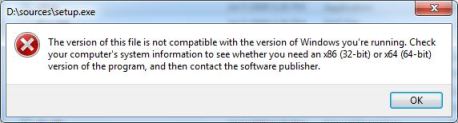
If the user attempts to run the setup.exe stored in the root and “sources” folder of DVD disc media or ISO image, the following error will occur:
The version of this file is not compatible with the version of Windows you’re running. Check your computer’s system information to see whether you need an x86 (32-bit) or x64 (64-bit) version of the program, and then contact the software publisher.
So how to “upgrade” from 32-bit OS to 64-bit Windows 7?
Unfortunately, there is no direct way to perform an in-place upgrade from 32-bit operating system such as x86 Windows XP or x86 Windows Vista to x64 Windows 7, with existing application programs and data retained. The only way to install x64-based Windows 7 on existing 32-bit Windows installation (or vice versa to downgrade from 64-bit to 32-bit OS), is to do a clean install, which indicated by “Custom (advanced)” installation during set up Windows 7 installation wizard.
Here’s the brief guide for user who wishes to upgrade to 64-bit platform from a 32-bit Windows:
- Backup and save existing application settings and data to migrate to new system with Windows Easy Transfer. Note that installed programs won’t be migrated or ported over to new Windows.
Alternatively, just manually do a backup and copying of all data files and personal documents, photos, images, videos, bookmarks and etc.
- Boot and start up computer using the 64-bit (x64) Windows 7 installation DVD disc media or a Windows 7 install USB key flash drive. Setting correct device boot sequence may be required at BIOS. Check out how to access BIOS.
User who has Windows 7 ISO should burn the image to a physical disc with a CD/DVD optical burning software such as Nero and Ashampoo Burning Studio, or uses official Windows 7 DVD/USB ISO Download Tool to create bootable Windows 7 USB flash key drive or write to DVD. In Windows 7, it’s also possible to burn the ISO direct from Windows 7 Explorer without third-party software.
- When prompted by Set up Windows installation wizard, select Custom (advanced).
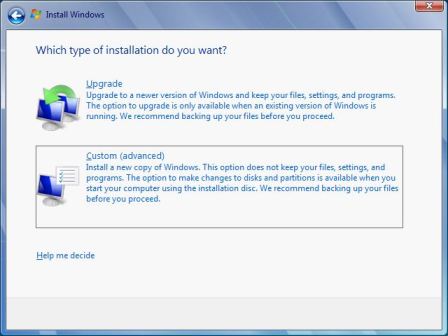
User is free to create, delete, modify, create or format partition volumes and hard disk drives before continuing the setup installation of Windows 7. If user choose to install over a partition or drive with existing Windows, user will be informed that current installation of Windows will be moved to Windows.old directory.
- Install and activate Windows 7 as usual.
User with x86 setup1.box and setup2.box ESD Windows 7 installation files or x64 setup1.box and setup2.box ESD Windows 7 installation files should follow steps to create and make a bootable ISO prior to burning.
Tip: For end-user with a Windows 7 upgrade license, media and product key, an existing installation of Windows must exist for the upgrade version product key to be able to entered and activated properly. Thus, do not format the hard disk drive prior to loading the Windows 7 setup even if you intend to clean install, or else user has to use hack to complete the clean install the Windows 7 Upgrade. User can create or delete hard disk drive or partition during the setup via Custom (advanced) -> Drive options (advanced) option (note: a 100 MB system reserved partition may be created by Windows 7 Setup), or let Windows 7 install wizard backup the existing configuration to Windows.old folder, and then delete and wipe clean the whole partition volume prior to install Windows 7.
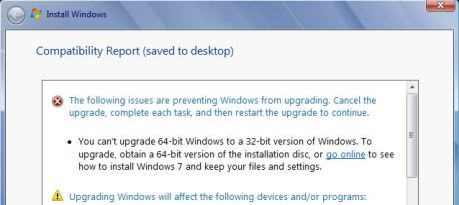
32-bit setup installer can be read and run in 64-bit operating system, but the in-place “downgrade” is equally not supported, with the following error been shown in compatibility report after a run of compatibility check:
The following issues are preventing Windows from upgrading. Cancel the upgrade, complete each task, and then restart the upgrade to continue.
You can’t upgrade 64-bit Windows to a 32-bit version of Windows. To upgrade, obtain a 64-bit version of the installation disc, or go online to see how to install Windows 7 and keep your files and settings.
The above workaround to clean install Windows 7 works to downgrade from 64-bit to 32-bit Windows 7 too.
 Tip and Trick
- How To Download HBO Shows On iPhone, iPad Through Apple TV App
- Windows 10 Insider Preview Build 19025 (20H1) for PC Official Available for Insiders in Fast Ring – Here’s What’s News, Fixes, and Enhancement Changelog
- Kaspersky Total Security 2020 Free Download With License Serial Key
- Steganos Privacy Suite 19 Free Download With Genuine License Key
- Zemana AntiMalware Premium Free Download For Limited Time