
Trick to Speed Up Windows 7 and Vista Boot Up Process by Increasing Processor
Always feeling that the computer system boot up or startup process is slow, and to slow and lag until can get sleepy while waiting for Windows OS to ready itself? When more and more programs are installed and loaded on initial start up, Windows loading process becomes slower and slower. Windows Vista and Windows 7, together with their server variants, Windows Server 2008, has built-in mechanism to make boot up process faster, by maximizing usage of available processors.
There are many ways to decrease booting time and speed up start, such as using third party programs such as Startup Manager to manage programs running automatically. Windows 7 and Windows Vista users running dual-core, quad-core or other multi-core or multi-processors computer can try the following trick to make Windows boots faster.
- Press Win + R to open “Run” dialog window.
- Type MSConfig into the text box after “Open”.
- Go to Boot tab.
- For dual-boot or multi-boot system, make sure that the operating system to make the change is selected.
- Click on Advanced options button.
- Tick the check box for Number of processors, and then select the maximum number count of CPU core processors value from the drop down list.
- Click OK twice to exit System Configuration.
- Restart computer.
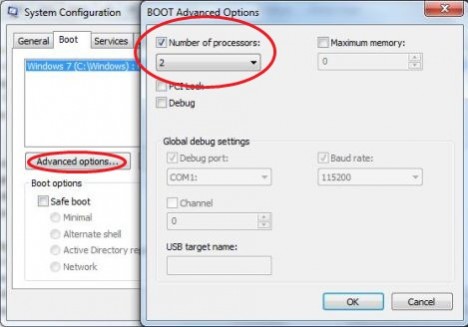
Once enabled, Windows operating system will use all available (or selected number of) processor cores to run the boot up algorithms, and this potentially make the startup speedier and faster, with less waiting time on black screen and logon screen. User with single core computer unlikely to find the trick useful though.
Related posts:
- Create Windows Vista Boot Logo with Generator to Customize Boot Screen
- Display Windows Vista Built-In Aurora Startup/Boot Screen
- How to Uninstall and Remove Windows 7 or Vista Leaving Windows XP on Dual Boot System
- Fix and Restore Windows 7 Boot Screen That Changes to Vista Style
- Vista Loader 2.1.3 (Windows Vista Activator 2008) Support SP1 with No Boot String Free Download


It’s funny all these idiots swearing by “my computer literally booted before i pushed the button”. Placebo effect is one hell of a drug.
I tried it and it didnt do shit.
This is not a myth, i tested this on my laptop. From the Starting Windows screen to logged in and running under the default setting took 1min 30sec. Selecting to use both processors took just 55sec. Now 35 seconds may not be a lot of time but to me, that is a significant improvement.
I'm going to try this too. I just upgraded to Windows 7 earlier tonight. Right now start up takes about 45 seconds from hitting the power button to getting an instant right-click menu pop up on the desktop. I have to admit, my curiosity is being driven by some commentors calling this a myth and other commentors reporting actual reductions.
Urban myth. Sorry, this will not speed up your computer. It will simply allow you to reduce the number of processors Windows uses during startup. By default, Windows will use all processors/cores available to it.
I keep getting this error: "The path cannot be found" any fix for this?
Wow, great tip, thanks! Booting is way faster now!
it boot within 40 seconds with me no lite 512 mb ram 1.2 ghz procesor no dual core
3 mins!! u can get it to boot wihtin 1 min!!
This works… By tweaking my Startups, System Drivers and this trick, I got my boot time down to about 3 minutes…
Great tip! Thanks!
I googled this problem and chance upon this article, then tried and tested it…and it works! Thanks to My Digital Life.
nice , thx
)
Gotta tried this,.. there are times that my windows seven just sit there appearing to be working and leaving me in an awe waiting him to load up.
thanks,
RTFM!
—————————-
Advanced boot options:
Number of processors. Limits the number of processors used on a multiprocessor system. If the check box is selected, the system boots using only the number of processors in the drop-down list.
—————————-
I tested this on dual core processor anyways:
before: ~30 secs [Power On -> Login]
after: ~30 secs [Power On -> Login]
RTFM.
This is for debugging purposes and has no effect on the actual amount of cores windows uses, just the maxmimum amount it will use. This is pretty much only for hardcore software devs.
AGAIN it does not have ANY effect on performance. Anyways, bootup isn't a CPU intensive proccess, so even if this did do anything, its unlikely to improve boot speed. Faster Harddrive and RAM are main ways to improve boot speed.
this worked for me,keep up the good work.
cheers……
Well it worked for me!
Go figure…
Well it worked for me!
Go figure…
I have 64-bit Win7 on an i7.
This worked GREAT for me—the number of processors had been 1, I changed it to 8, and the time spent in boot at the Windows flag dropped from over a minute to a few seconds.
It really work for me! It's faster by around 30 seconds!
Sorry, on my previous post it should read Windows 7 64 bits.
I did exactly this change and it works fine for me. Before the change it would stay for about 1 to 2 minutes on the Windows flashing logo screen and now it takes about 5 seconds on this screen! I have a quad core and Windows 7 quad core.
Thank you very much for this advice.
WRONG!!!!!!!! What you see is what you get!!!!
My Boot time went from 60-90 sec to about 20 sec tops!!!!!!! OF Course I have a dual Windows Vista Home Premium licenses with full 4 GB support,all Intel dual channeled, you have just stepped into the 3fees zone, The author of this is exactly right.
This is the biggest load of internet myth that I have ever read.
In fact it is the prolonged reading of Garbage like this that Killed me
Please nuke this. Perpetuating this myth just leads to more idiocy.
[...] [...]
[...] want to learn a few more cool things head on over to My Digital Life, the site that I originally learned this at! [...]
i think your heading is misleading, by default windows will boot up using all processes. so changing this configuring will have no affect.
Blizz26, 32 bit processor architecture only supports something like 2.75-3 GB of RAM, if you have 4GB RAM, almost 1GB will go to waste simply because the processor doesn't know how to use it. 64-bit based processors and operating systems can use up to 128GB of RAM (although I think the hardware cap is somewhere in the exabytes)
The cores are simply to do one of two tasks:
1)Diagnose and issue with a processor core (seeing which core is faulty)
2)Dev testing a program on a single core or dual core config.
HAL (hardware access layer) will automatically detect all the info on your processor (including model, voltage, frequency, # of cores, etc) and automatically set it to boot with that many cores.
Oh dear, not this myth again.
It's like the 419 scam, it's not going to die.
This does not make Windows boot any faster. The Windows HAL (check the "computer" tree in the device manager) already knows how many cores the system is operating with.
This feature is intended to give developers the ability to test their code in multi-threaded environments that differ from their own system. It can also be used to identify issues with single processors in SMP environments.
wow! realy nice boot up with 4 cores
True or not, this setting is also available for Windows XP in msconfig under BOOT.ini > advanced
Awesome. Also can use this if your memory is only showing 2 gigs when you have 4 gigs installed in the task manager performance tab.
This is a common myth. This is not necessary, it sets the MAXIMUM number of processors the OS will use.
please see: http://www.withinwindows.com/2008/08/09/tweaking-…