
Windows 7 and Windows Vista includes a Welcome screen as the default logon screen, which will be displayed on boot up for system where the individual user has its user account password-protected, or system with multiple local or network user accounts. In Welcome screen, the list of user account names or IDs or the user name of last logged in account is displayed for easy selection.
For users who prefer the Windows XP-style or Windows 2000/NT-style classic logon screen, where all user accounts are hidden from the Welcome screen, where no last logged on user name is displayed, and where both username and password is required to be typed to log on, just make use of the same trick which makes Windows does not display last logged in user name on logon screen, as detailed below.
Method 1: Via Registry Setting
- Run Registry Editor (RegEdit).
- Navigate to the following registry key:
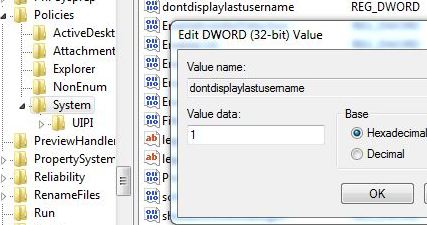
HKEY_LOCAL_MACHINE\Software\Microsoft\Windows\CurrentVersion\Policies\System
- In the right pane, double click on DontDisplayLastName registry key value, and set its value data to 1.
Method 2: Via Group Policy
- Click on Start button, and type secpol.msc into Start Search box, and hit Enter to open the Local Security Policy Editor.
- Navigate to Security Settings -> Local Policies -> Security Options.
- In the right pane, double click on Interactive Logon: Do not display last user name.
- Select and set the radio button of Enabled.
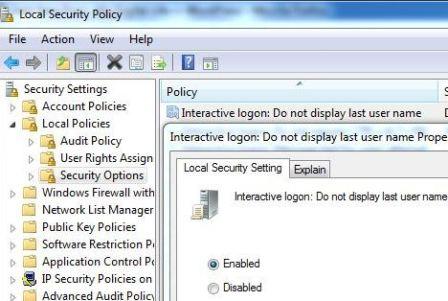
- Click Apply or OK.
The DontDisplayLastName setting forces Windows to forget the most recently logged on user name, and do not display the last logged on user name on logon screen. Thus, the Welcome Screen of Windows 7 or Windows Vista will be reverted back to a normal logon screen with empty user name and password fields, but there is no longer “Logon to Windows” dialog.
For user who wants to make the logon screen similar to Windows NT or Windows Server style, there is registry or group policy hack to enable action to press Ctrl + Alt + Del prior to entering user name and password.
 Tip and Trick
- How To Download HBO Shows On iPhone, iPad Through Apple TV App
- Windows 10 Insider Preview Build 19025 (20H1) for PC Official Available for Insiders in Fast Ring – Here’s What’s News, Fixes, and Enhancement Changelog
- Kaspersky Total Security 2020 Free Download With License Serial Key
- Steganos Privacy Suite 19 Free Download With Genuine License Key
- Zemana AntiMalware Premium Free Download For Limited Time