
Copy text from any applications like word document, webpage, outlook, power point will carry its word formats automatically. If you don’t like the formats and want to have your own style, what you normally do is changing the font, font size, font color and etc after pasting the text to the document. Alternatively, to avoid the format from being carried over, paste the text to notepad, copy it from notepad then only paste it to document. All these involve few extra steps which are annoying and irritating. Now there is a utility, named as PureText which can let you copy text without worrying about the format from being carried along.
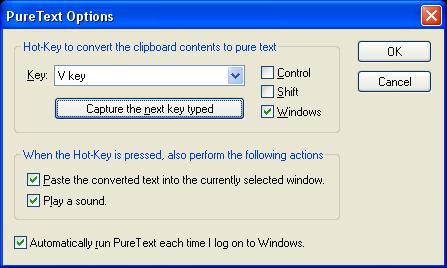
PureText is a standalone application that helps you removing rich formatting from text such as font face, font style, font color, paragraph styles, margins and etc without changing the actual text content. Basically it is equivalent to copying text from original source and pasting it to notepad, followed by copying the text from notepad. Once PureText is launched and running, it will stay as “PT” tray icon at taskbar near the clock. There are 2 ways you can paste the text without original format being carried along. First one is to click on “PT” icon to remove text formatting or alternatively users can utilize hot-key to paste the text instead of using standard CTRL+V. The default hot-key used to paste text without formatting is WINDOWS+V. However, you are allowed to change the default hot-key to your own preference in Options menu.
PureTex version 2.0 is absolutely free to use. If you think this is helpful, just go and download it at here.
 Tip and Trick
- How To Download HBO Shows On iPhone, iPad Through Apple TV App
- Windows 10 Insider Preview Build 19025 (20H1) for PC Official Available for Insiders in Fast Ring – Here’s What’s News, Fixes, and Enhancement Changelog
- Kaspersky Total Security 2020 Free Download With License Serial Key
- Steganos Privacy Suite 19 Free Download With Genuine License Key
- Zemana AntiMalware Premium Free Download For Limited Time