Jun 20, 2008
My Digital Life Editorial Team

How to Unassociate File Types and Remove File Extension Associations in Windows Vista

Windows Vista has GUI (graphical user interface) for editing, changing or setting file associations from various file types and protocols to open with a default program. However, it doesn’t provide a tool or utility to unassociate file types and remove file extension associations that already exists in the registry.

Windows Vista does have two command link utilities that can be use to remove all file extension associations with its default program. Here’s the guide on how to use the assoc and ftype commands to remove file type association of an extension.

Example removing .rar extension associated “to open “with winrar.exe

  1. Open an elevated command prompt with admistrator privileges.
  2. Remove the file extension association from its assigned file type with the following command, follow by ENTER:

    assoc .ext=

    Replace .ext with the extension name that needs to be unassociated. For example, to disassociate WinRAR .rar extension, simply type assoc .rar =.

    Note that after disassociation of file extension from file type, the default program for the file type no longer been shown in the “Open With” list for the file extension.

  3. Then, clear and delete the default program used for the open command when launching files of this type by typing the following command, and press ENTER:

    ftype FileType=

    Replace FileType with the actual name for the file type associated to the file extension to be removed from the system. For example, for WinRAR, type ftype WinRAR=.

    Note that if you don’t know what’s the correct “FileType” to type, simply type assoc (associated file type will be shown after the extension) or ftype to get a listing of all file types defined in the system.

After disassociation or unassociation of a file extension association, when user double clicks on the particular type of file, the dialog box will be prompted saying “This file does not have a program associated with it for performing this action. Create an association in Set Associations control panel.” and user is forced to click the only OK button. However, it’s possible to right click on the file, and choose Open With… option, then user can select a program from a list of install programs to open the file, and on the same time, set the correct and proper file association again.

No related posts.

17 Comments

  • thanx

  • Didn’t Work even when i cmd promt as an admin !!!! Fu*k u

  • The best way to do it is this:

    Open up notepad. Write the word “test” (or “blah” or whatever word you want). Click file -> Save As… For the File name, type test.exe. In the “Save as type” drop down menu, chose “All files” and save it on the desktop.

    Next, right click the file you want to unassociate and click Open With -> Choose default program… Browse to “test.exe” on the desktop and click “always use the selected program” and click ok.

    Now, simply delete “test.exe”. The file will have no associated program.

    • I should say, this is for Windows 7 (but the same principle should work for Vista, I guess).

    • Great solution! Only I must add, for my purposes, I had to do also restart afterward.

  • didnt work >:(

  • it doesnt work i want to unassocate .iwd files to win rar but it dont work

  • Using `assoc .ext=` resulted in an error: "The system cannot find the file specified."

    Instead I used `assoc .ext='' ` and got successful results.

    You may want to correct your post to reflect this.

    P.S.: Yes, I'm using MS Windows 7 Professional ("Version 6.1.7601" from `ver` from cmd.exe).

  • The easy way to remove a mistakenly associated program from a particular file type. All you need to do is associate the file type to a dummy program you can delete. Save the settings, then delete the program. The file type will go back to Unknown Application.

    That's something I figured out when I realized the "Engineers" @ Micro$oft didn't include a simple solution to a common problem.

    God bless!

  • How do you run as yourself? win7 only gives me the option to run as administrator.

    • That's because if it is you personal computer, you probably are the administrator.

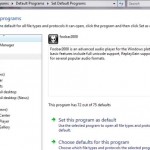
  • Also with relation to diassociating certain file types from programs. In Vista There's a control panel called "Default Programs" in there you will find the "Set Your Default Programs" hyperlink which will then allow you to select a program & chose which file types you would like the program to open by default. for example I want Windows Media Player to open .avi files

  • Thanks, this post was very helpful to a peeve I was having with Win 7.

  • [...] or default associated program(s). Thus, deleting or removing a program from Open With list does not unassociate file type with its default program, nor affect the ability to automatically open the file in its default program when double click or [...]

  • if you use an elevated command prompt with admistrator privileges, the assoc is removed in administrator account and NOT in your account. To remove in your account, you have to open a normal command prompt

  • [...] this problem. There is a great article from mydigitallife which I thought can solve my problem: http://www.mydigitallife.info/2008/0…windows-vista/ But I can’t make it to work: For both users, Assoc & ftype looks the same Assoc .pps [...]

  • [...] .pif, .ocx, .wmdb, .wsp, .xmp, .tpl and other extension types. Sometimes, user may accidentally unassociate or delete the file association too, or assign an extension such as shortcut with .lnk to a wrong program when forget to uncheck [...]

Leave a comment

Notify me of followup comments via e-mail. You can also subscribe without commenting.

Subscribe

Free email subscriptions
Get latest updates in email for free:

Translate This Page