
It’s possible the Windows 7 ISO or DVD disc media that end-user possessed may be restricted to install a single edition or version of Windows 7 only. For example, a Windows 7 Professional media may not prompt option to select which edition of Windows 7 to install, and instead will install Windows 7 Professional edition. Likewise for Windows 7 Ultimate DVD ISO image or disc which may not have edition selection screen.
However, all DVD of Windows 7 does contains and able to install all and any version of Windows 7, from Windows 7 Starter, Home Basic, Home Premium, Professional to Ultimate edition. Actually, the ability to select the version or edition of Windows 7 during setup installation, or which edition that the setup will automatically install, lies with a small configuration file named ei.cfg on the Windows 7 DVD, disc media or ISO image.
The content of the ei.cfg file, inside the “sources” folder of the DVD looks like below:
[EditionID]
Ultimate

[Channel]
Retail

[VL]
0
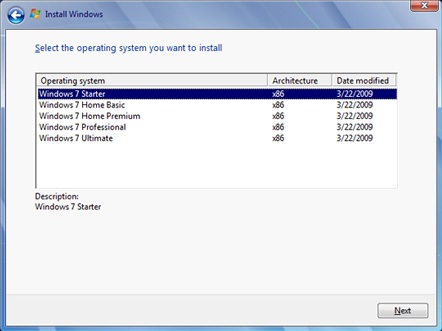
When ei.cfg does not exist, Windows 7 setup process will display a screen during Install Windows wizard to ask user to select the operating system (edition) to install. The selection of OS includes Windows 7 Starter, Windows 7 Home Basic, Windows 7 Home Premium, Windows 7 Professional and Windows 7 Ultimate. Thus, in order to be able to install any editions or install another different edition of Windows 7 without having to download ISO image or order a new DVD of Windows 7 with all SKUs enabled (allSKU version), use the following hack to delete or modify ei.cfg file.
- Download and install an disc image utility such as PowerISO or UltraISO to open the ISO image of Windows 7 DVD. If you own a physical DVD disc media, the similar tool allows you to rip the DVD to ISO or other image format too.
Another alternative for user with Windows 7 DVD ISO image downloaded via torrent or from Internet is to extract all contents of the ISO image by using extraction tool such as WinRAR or 7-zip, or mount the ISO and copy contents to a folder.
- Browse to /sources/ folder.
- Locate ei.cfg file.
- Depending on preference, it’s possible to modify/edit or simply delete ei.cfg file, as explained below.
Choice 1: Delete ei.cfg
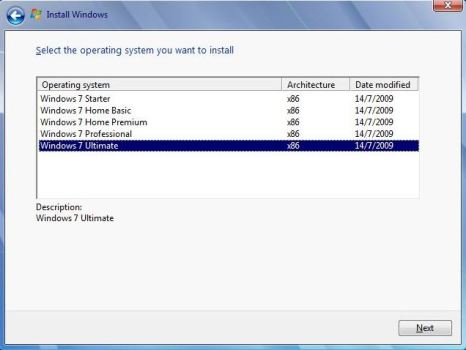
When ei.cfg is deleted, Windows 7 setup wizard will give user an option to select and choose which version (SKU) of operating system user wants to install during installation.
Choice 2: Edit and Modify ei.cfg
By modifying the EditionID section of ei.cfg by replacing Ultimate (or other edition specified there) with another edition, user can preset another edition SKU of Windows 7 that user want setup to install automatically. The Edition ID available for installation are as follow:
- Ultimate
- Professional
- HomePremium
- HomeBasic
- Starter
Save the ei.cfg after editing.
- For user who wants to in-place upgrade to Windows 7, it’s possible to run setup.exe from extracted DVD contents now. The modified ISO can also be burned to a DVD disc or saved to a new ISO image.
Tip: Editing of ei.cfg can now be automated by Windows 7 ISO Image Edition Switcher, and deletion of ei.cfg with ei.cfg Removal Utility.
 Tip and Trick
- How To Download HBO Shows On iPhone, iPad Through Apple TV App
- Windows 10 Insider Preview Build 19025 (20H1) for PC Official Available for Insiders in Fast Ring – Here’s What’s News, Fixes, and Enhancement Changelog
- Kaspersky Total Security 2020 Free Download With License Serial Key
- Steganos Privacy Suite 19 Free Download With Genuine License Key
- Zemana AntiMalware Premium Free Download For Limited Time