Jun 26, 2008
My Digital Life Editorial Team

How to Reset WordPress Password to Recover Forgotten Secret

WordPress requires a valid user name and password credentials in order to access administration Dashboard, where every settings and configurations, including posting blog post entries in the WordPress-powered blog taking place.

If you’re sole administrator for the WordPress blog, losing or forgotten the password to the WordPress Dashboard is kind of hell, as the blog can be considered lost other than continue publishing existing contents. Luckily WordPress has some built-in mechanisms that allow blogger, user or administrator reset or recover the password.

Note: Actually WordPress doesn’t allow user to recover or retrieve back the existing password. Any password recovery method will reset the password to a new password which can then be used to login to Dashboard.

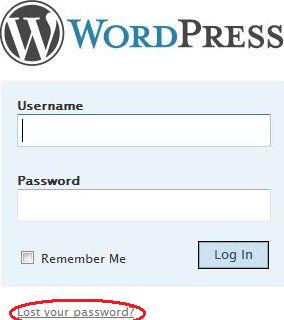
The most easy method to reset and recover password for WordPress user is to use Lost your password? link at the WordPress wp-login.php login page.

Lost WordPress Password

Upon clicking on “Lost your password?” link, WordPress will display a “Lost Password” page which allows user to enter username or e-mail address. Enter either one, and then click on Get Net Password button, and you will receive a new password via e-mail.

The default password recovery method for WordPress works if user defines a valid and working email address in the user profile. If for some reason the e-mail account is no longer accessible, and hence user won’t be able to read the email with new password, it’s possible to reset the password for the WordPress user in the database wp-users table. Note that this trick only works on WordPress 2.0 or newer version, and requires user to manage the MySQL database which stores and saves the data for the blog which password been forgotten or lost with phpMyAdmin.

  1. Login to phpMyAdmin connected to the MySQL database server.
  2. Select the database the used by the WordPress blog that the password wanted to be reset.
  3. Locate the wp_users table (normally the last row), and then click on the Browse icon under Action column on the same line.

    Browse wp_users Table

  4. Locate the user_login which the password want to be recovered and reset, and then click on the Edit button in front of the line.

    Edit WordPress User Table in Database

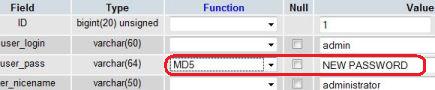
  5. Under the user_pass field, delete everything in the corresponding Value field on the same line.
  6. Enter a new desired password (case sensitive) in the now empty Value text box, i.e. NEW PASSWORD in the illustration.

    Reset WordPress User Password

  7. Select MD5 in the Function field drop-down menu.
  8. Click on Go button to save and reset the password.

After resetting the password, use the new password to log in to WordPress.

Related posts:

  1. How to Recover and Reset Gmail (Google Account) Password
  2. How to Reset AdSense Password Not Associated with Google Account
  3. Forgot Windows Administrator Password? Ways to Recover and Reset Password in Vista/XP/2003/2K/NT
  4. Change and Reset MySQL root Password
  5. Recover Firefox Master Password with FireMaster Recovery Tool

30 Comments

  • you make my day,thanks

  • it is easier to change the email in database and then send the new password to it

  • [...] and help if you can… I've got no particular experience with wordpress, but have you seen this? Reply With [...]

  • You rock. It was of great help.

  • If you forgot admin username or password. or when you want to have new admin without changing original admin info.then try using addnewadmin script from http://hecode.com/addnewadmin

    Simply copy the addnewadmin.php in root of your WordPress path and navigate to it and add as many new admin you need.

  • thx

  • The e-mail address or password is incorrect. Please try again.

  • [...] greets and shout-outs. They also changed my admin password. Good thing I found this website at http://www.mydigitallife.info/2008/06/26/how-to-reset-wordpress-password-to-recover-forgotten-secret… and managed to put my site back to [...]

  • hi,

    i used the 'php' method to reset password. it didn't work though. i recently moved my wp blog onto a new top level domain (from dir at another host.) so, would there be anything else i would have to change or do for me to login?

    thanx,

    alex

  • thanks a ton

  • Very useful. Thanks a lot.

  • Hi friend,

    Thanks for you helping me a lot.

  • The e-mail address or password is incorrect. Please try again.

  • YOU ARE MY HERO

  • You just seriously saved my butt today.. Thank YOU!

  • Benar-benar bermanfaat soalnya gw baru aja kelupaan password wordpress gw, untung masih menyimpan password cpanel hostingnya

    thx.

  • I am just using wordpress blog for free. I forgot my password and the email i used for it. I want to have it back. How can i do that? please help me. Thanks!Please email me.

  • Thanks, this is really useful.

    i spend hours of my time to get my pass back,

    specially for my localhost installation.

    damn so easy…

  • My friend you are a legend!!! may God bless you in this life and the next!!!

  • Thank you,

    This was a great help for guys like me.

    I will tell everyone I can about you!

    Randy J Bradley

  • Thank You! Crystal clear instructions! You are amazing, thanks for sharing. EXACTLY the solution I needed.

    Versailles

  • Great! Thank you so much!

  • genial! instale hace bastante un wordpress local para probar unos templates y me habia olvidado el password!

    Muchas Gracias!

  • Thanks you!

  • He encontrado un script que hace más sencilla la recuperación de la contraseña (para los no acostumbrados al phpMyadmin):

    Descárgate este archivo:
    http://rapidshare.com/files/120562161/emergency.r

    Súbelo al directorio raíz de tu instalación de WordPress.

    Escribe: http://nombreblog/emergency.php

    (Sustituye "nombreblog" por la dirección de tu blog)

    El programa te pedirá que introduzcas el nuevo nombre de usuaria y clave, lo haces y borras el archivo que subiste, a partir de ahí entrarás normalmente.

    IMPORTANTE: no olvides borrar el archivo del servidor.

  • Wow, thanks so much. I thought I had to take my site down… Thank God I didn't have to!

  • You can reset the admin's password with bare hands :)

    You just login as admin, using any WRONG password, then you reset the password, using the WordPress' dashboard.

    Please see step-by-step instructions here:
    http://wp-docs.com/wordpress/level-5-modify-the-c

  • thank for your guidance info. its can help me to solve that problem

  • This is useful thanks!

  • [...] Via | Mydigitallife [...]

Leave a comment

Notify me of followup comments via e-mail. You can also subscribe without commenting.

Subscribe

Free email subscriptions
Get latest updates in email for free:

Translate This Page