May 13, 2007
My Digital Life Editorial Team

How to Open MDI (Microsoft Document Imaging) Format with Office 2007

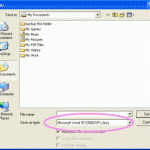
When using Microsoft Office 2003 System Suite, you may see a printer named Microsoft Office Document Image Writer in your list of printers. In a situation such as when you don’t have access to a printer, but must print out some transient documents such as booking confirmation for concert, flight or train tickets, or receipt for online purchase, or you simply want to keep a soft copy of the documents in unmodifiable format so that the file can later be printed elsewhere, you can make sure of MS Office Document Image Writer by printing to this virtual printer which will subsequently create a file with .MDI extension.

MDI is a proprietary file format of Microsoft for storing raster images of scanned documents together with optional annotations or metadata, and can only be produced or read by certain Microsoft software, such as Microsoft Office Document Imaging (MODI) module included in Microsoft Office 2003 and later. However, when you upgrade to Windows Vista and Office 2007, or bring the MDI files via USB flash drive or email to another computer with only Office 2007, you will encounter an error of “Windows cannot open this file”, and subsequently ask you to either let Windows to go online to look it up automatically, or manually select from a list of programs that are installed on computer.

The problem happens because “Microsoft Document Image Writer” feature is not installed by default when you run Office 2007 setup. So in order to open and view or print the MDI files with Office 2007 installed, try one of the following workaround or resolution.

Firstly, you can insert the file or drag and drop the MDI file into a OneNote page to view it instantly.

Second is a permanent solution, by installing Microsoft Document Imaging Writer and its corresponding support for the file format.

  1. Go to Control Panel, select “Uninstall a program” link under Programs section.”
  2. High Microsoft Office 2007 (it may show Ultimate, Enterprise, Professional, Small Business, Home and Student, etc).
  3. Click on “Change” located on the navigation link near the top of the window.
  4. Select “Add or Remove Features”, then click “Continue”.
  5. Expand “Office Tools” section.
  6. Click on the drop down list for “Microsoft Office Document Imaging” and select “Run all from My Computer”.
  7. Click “Continue”.
  8. Click “Close” when installation done.

A new virtual printer “Microsoft Office Document Imaging Writer” is created and allows you to print to MDI format (a TIFF variant). And from now onwards you should be able to open any MDI files by simply double click on them. If you still can’t, try to restart your computer.

Related posts:

  1. Open Office 2007 Files in Mac OS X – Office 2004 for Mac Compatibility Issue Alternative
  2. Open, View, Edit, and Save Office 2007 Documents, Spreadsheets, Workbooks, and Presentations in Office 2003, XP or 2000
  3. New Microsoft Office 2007 File Formats and Extensions for Word, Excel and PowerPoint Files
  4. Free Microsoft Office Professional 2007 and Groove 2007 for Ready for a New Day Windows Vista, Office and Exchange 2007 Launch Tour Attendees
  5. Configure, Change or Set OpenOffice.org to Default Save Files in Microsoft Office Formats

386 Comments

  • I do really want to thank you very much for your perfect data close to this post. I opine that you need the assistance of a professional article submission service or the magazine article submissions to do your research telling.

  • thankz 4 information…

  • Thankyou so very much, absolute genius

  • THANK YOU SO MUCH, YOU’RE A GENIUS

  • Gr8t very much helpfull and shortest root.

  • Very GooooooooooooooooooooooooooooooD
    it works

  • Thanks! Went the permanent route!

  • thanks! very good solution

  • goooooooooooooooooooooooooood

  • Very great !! Thank You very much ! That’s really helpful .

  • thank you…now i can finish my work :)

  • FANTASTIC/ I was just looking for this. I had followed what was said . It was fine. But I have one problem. Why these go through – PICASSA ? Can it be avoided ?. Pl help.

  • FANTASTIC / FANTASTIC. This is just what I was searching , but no body could guide me. My brother suggested & tried your instructions . Just followed. I was successfull. Fantastic. This was very usefull in my Tally report printing as , with this – we can print page by page edit them etc. But I have one funny problem This directs to PICASSA & printing gets edited from there.- which is for PHOTOS. where as I want to print reports / texts etc. Please suggest what should I do – for – not touching PICASSA.

  • Thanx a lot.. It worked..!

  • Thanks buddy………….. it worked for me. :)

  • Yah….. this article is very helpfull…………. i am able to install virtually MODI printer successfully………….. Thanks to all………………

  • Thanks men it worked for me thank for the good job

  • Good Doc

  • thanks thanks thanks thanks a lot

  • Wow! It has really worked. Thanks to the team who worked this simple solution.

  • oh thanks a lot!!it really is helpful!

  • Thanks, This was all I needed. Been looking for a download and here it was there all the time, just needed to know where to look. Thanks AGAIN!

  • It was really helpful, my problem is solved now. Thanks..

  • Great Very Helpful Thanks

  • Great Very Helpful Thanks

  • It Worked. Thanks a lot.

  • thanks its working

  • Thanx…it works

  • Thanks I Am trying this for last 6 hrs but finally i have done this thanks a lot

  • Great Very Helpful Thanks

  • Really helpful..Great, Thanks…. :)

  • Tried to add this printer and wasn't successful.

    I'm running Windows7 64 bit.

    I currently have "Microsoft XPS Document Writer" printer installed. Maybe this is a problem?

  • Great, thank you very much.

  • So Simple. Why can't Microsoft give this simple information on their help site? I went there, and it did not explain a darn thing!!! Thanks to My Digital Life!!!

Pages: 1 6 7 8

Leave a comment

Notify me of followup comments via e-mail. You can also subscribe without commenting.

Subscribe

Free email subscriptions
Get latest updates in email for free:

Translate This Page