How to Open Elevated Command Prompt as Administrator with Admin Privileges in Windows
Windows power users have many ways to launch a Command Prompt or Windows command processor (Cmd.exe) with administrator privileges, rights or credentials. It’s a security feature in Windows which was implemented beginning from Windows Vista, and continuing in Windows 7, Windows 8, Windows 8.1, Windows 10 or later, all of which that comes with User Access Control (UAC). UAC ensures that all process is launched in restricted standard mode unless users specifically accept the elevation confirmation. For Command Prompt, the commands that require access to system components or protected files and folders may refuse to run or have access denied error. So users need to run the Command Prompt as Administrator to go into a state where the Command Prompt gains full admin rights and grant all permission state.
Here’s a few ways and methods the elevated Command Prompt can be opened and ran as administrator.
Tip
For all of the methods to run Command Prompt as Administrator, when the steps involve right clicking on the item and then select “Run as Administrator”, you can replace it by pressing Ctrl + Shift + Enter simultaneously. Ctrl + Shift + Enter is the general keyboard shortcut that triggers elevation to “Run as Administrator”.
Method 1
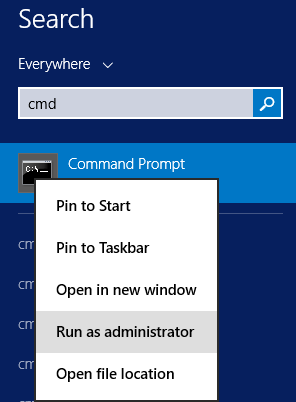
Click on Start button. Locate the Command Prompt menu item (buried deep inside Accessories under All Programs or appear on program access history). In Windows with Modern Metro interface, such as Windows 8, Windows 8.1 or Windows 10, it’s located under Windows System in Start Screen.
Alternatively, press the Win keyboard key or click on Start button, and then type Cmd into the Start Search textbox to search for Command Prompt.
Right click on Command Prompt.
On the pop-up right click context menu, select Run as Administrator.
Press Continue or Yes to confirm the UAC elevation warning prompt.
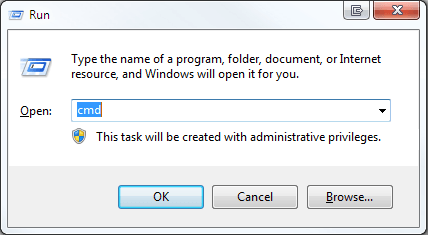
An alternative way to open the Run command is by pressing Win + R keys simultaneously, useful in Windows versions that do no have Start menu.
Type in Cmd in the “Open” textbox.
You should see “This task will be created with administrative privileges”.
Click on OK or press Enter.
Method 3
Note: This method only works in Windows 8, Windows 8.1, Windows 10 or later and their server equivalent.
Right click on the Taskbar and select Task Manager.
Click on More details if the Task Manager is currently showing “fewer details” (i.e. no menu bar).
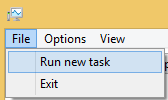
From the Menu bar, select File > Run new task.
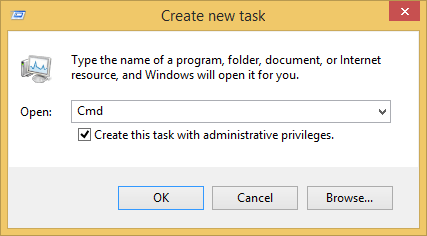
A “Create new task” dialog box, which is identical to “Run” dialog box is opened, but with an additional option. Type Cmd in the Open text box, and select Create this task with administrative privileges setting.
Hit Enter or press on OK when done.
Method 4
Note: Only works in Windows 8 or later. In Windows 7 and Windows Vista, it opens standard Command Prompt with non-elevated access tokens.
Right click on the Taskbar and select Task Manager.
Click on More details if the Task Manager is currently showing “fewer details” (i.e. no menu bar).
Press and hold and Ctrl key, and click or tap Run new task from File menu in the Menu bar.
Add a right click contextual menu option of “Open Command Prompt as Administrator” to the Computer (My Computer) so that you can simply right click to open the super Command Prompt.
In Windows 8 or later, such as Windows 8.1 and Windows 10, right click on the lower left corner or at the Start button to open the Quick Access Win-X menu, and select the Command Prompt (Admin) to open an elevated Command Prompt.
LK is a technology writer for Tech Journey with background of system and network administrator. He has be documenting his experiences in digital and technology world for over 15 years.Connect with LK through Tech Journey on Facebook, Twitter or Google+.