
When a Windows XP system is accessed via Remote Desktop or Terminal Services connection, the default maximum color resolution (color depth or color quality) is set to 16-bit on Windows XP. The color depth is limited in order to improve connection performance especially on slow link, and reduce server load.
In Windows XP era, high quality of video display of remote computer or remote virtual machine over a Remote Desktop or Terminal Services connection is probably not important or makes no difference. However, with the advance of high definition graphics display, connect to a Windows XP system on 16-bit color quality will make some colors to appear strange, or not properly drew.
It’s possible to increase and up the limit on the color depth of any connection to a Terminal Server or Remote Desktop Server via Remote Desktop Services session. Changing the color depth or color quality allowed over Remote Desktop or Terminal Services connection is useful especially in the case of Windows XP Mode which can be used to run virtualized apps such as IE6 natively on Windows 7 host desktop, where Windows 7 host connect to the virtual machine via Remote Desktop Protocol (RDP).
Tip: If you’re trying to change the color depth limit on Windows XP Mode, click on Tools menu of the virtual machine window, and select Disable Integration Features before continuing with the procedure. After changing the maximum color depth limit, re-enable the integration features.
- In the Windows XP operating system (remote system), click on Start menu, then Run.
- Type GPEdit.msc to open Group Policy Editor.
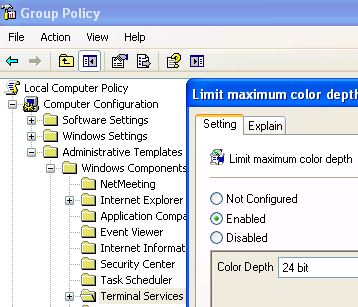
- Navigate to Local Computer Policy -> Computer Configuration -> Administrative Templates -> Windows Components -> Terminal Services.
- In the right pane, double-click on the Limit Maximum Color Depth setting.
- In the Properties dialog, select radio button of Enabled, and then set Color Depth value to 24 bit or Client Compatible.
- Click OK when done.
- Restart the computer.
The steps to allow Remote Desktop and Terminal Services connection to connect at higher color depth is basically done. However, for users who are connecting to Windows XP in virtual machine (such as Windows XP Mode) should check that the Color Quality setting should be set to 24-bit or 32-bit color in high screen resolution.
 Tip and Trick
- How To Download HBO Shows On iPhone, iPad Through Apple TV App
- Windows 10 Insider Preview Build 19025 (20H1) for PC Official Available for Insiders in Fast Ring – Here’s What’s News, Fixes, and Enhancement Changelog
- Kaspersky Total Security 2020 Free Download With License Serial Key
- Steganos Privacy Suite 19 Free Download With Genuine License Key
- Zemana AntiMalware Premium Free Download For Limited Time