
Windows Phone 7 (WP7) does not support Internet tethering feature for users without an approved mobile carrier’s data plan (either 3G, 4G and etc.) which allows a computer to share and surf the Web via the mobile phone’s modem as Internet access connection.
Though tethering is not turned on nor enabled out of the box on Windows Phone 7, the functionality is actually built into the phone, waiting for hacker to hack and crack open the tethering function. And the result is that WP7 smartphones by Samsung have been the first to be hacked for enabling the tethering.
The Samsung’s Windows Phone 7 that able to be hacked to enable tethering includes Samsung Omnia 7 and Samsung Focus. However, even after hack, the device will not do Wi-Fi (wireless) tethering at the moment. Only USB tethering is supported.
For Samsung WP 7 mobile phone owners, here’s the hack to enable Internet tethering:
- Download and install the Zune software from zune.net.
Alternatively, for user who does not want to install Zune software or the PC has problem installing appropriate driver, try to download and install Samsung USB driver for mobile phone: SAMSUNG_USB_Driver_for_Mobile_Phones.exe
- On the phone, go to keypad and dial ##634#, then press the Call button.
- A diagnostic mode screen in gray will show up with “Diagnosis” heading, timer and keypad. Dial *#7284#, and press the Call button.
- A “Microsoft USB Test” screen will show up which allows configuration of USB Path Control settings (options available is Zune Sync; Modem, Tethered Call; and Modem, USB Diag). Select Modem, Tethered Call.
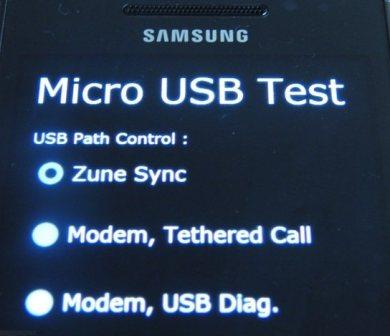
- The phone will automatically restart to activate the setting.
- Connect the phone to PC with a USB cable.
- Windows should automatically detect the Windows Phone 7 and install driver from the device. A phone modem named Samsung Mobile Modem will be installed.
- Once the drivers are installed, go to Control Panel -> Network and Internet -> Network and Sharing Center, and click on Change Adapter Settings on the left pane (for Windows 7 and Vista).
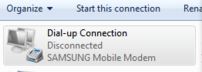
- A Dial-up Connection which uses the SAMSUNG Mobile Modem should exist on the list. Right click on the connection’s icon and select Connect.
- Enter the following connection settings (for AT&T only):
Dial-up phone number: *99***1#
User name: WAP@CINGULARGPRS.COM
Password: CINGULAR1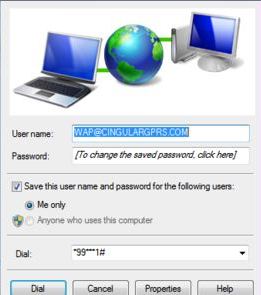
Tip: Other carrier uses own APN information.
- Click Dial/Connect and the phone will connect to Internet via cell data, and allow the computer to share the Internet connection.
Internet tethering on LG Optimus 7, HTC Windows Phone 7 and Dell Venue Pro can also be enabled.
While tethering via USB, the synchronization with Zune software may not be working. In this case, just disconnect the USB cable and connect over Wi-Fi connection to sync up with Zune software. To sync via USB again, user have to return to diagnostics mode to switch back to “Zune Sync”.
And the disclaimer is that the hack violates most mobile carrier’s terms of service, and may cost users a lot of money for overage charge if they’re on limited data plan.
 Tip and Trick
- How To Download HBO Shows On iPhone, iPad Through Apple TV App
- Windows 10 Insider Preview Build 19025 (20H1) for PC Official Available for Insiders in Fast Ring – Here’s What’s News, Fixes, and Enhancement Changelog
- Kaspersky Total Security 2020 Free Download With License Serial Key
- Steganos Privacy Suite 19 Free Download With Genuine License Key
- Zemana AntiMalware Premium Free Download For Limited Time