
The Advanced Host Controller Interface (AHCI) is a technical standard by Intel that can speed up hard disk read/write operations by making available SATA’s advanced capabilities such as hot swapping and native command queuing to the host system. Windows 7 and Windows Vista can natively support AHCI, and the AHCI driver is installed and used by default if Windows 7 detects that the computer supports AHCI during installation.
Some older computer disables AHCI support at BIOS level, even though the motherboard’s chipsets support AHCI. Without AHCI, a computer runs even slower when the slow computer supposedly have a little boost with AHCI turned on.
Windows 7 and Windows Vista does not install AHCI device driver if it does not detect presence of ACHI support on the system during installation. As the result, if you enable the ACHI in BIOS after Windows is installed, the system may crash and unbootable.
If you have just notice that your motherboard does indeed support AHCI after you have installed Windows 7 or Windows Vista, but have previously been disabled, here’s the trick the enable AHCPI support in Windows OS. The step has to be done BEFORE AHCI is turned on in BIOS to avoid any system crash.
- Type RegEdit into Start Search and hit Enter to start Registry Editor.
- If the UAC dialog box prompts and asks “Do you want to allow the following program to make changes to this computer?”, click Yes button.
- In Registry Editor, navigate to the following registry key:
HKEY_LOCAL_MACHINE\SYSTEM\CurrentControlSet\services\msahci
- In the right pane, right click on Start and select Modify.

- Set the value data for “Start” to 0, and click OK.
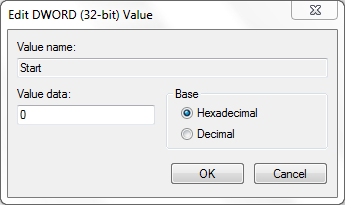
Default value (when ACHI is disabled): 3 for Windows 7 and 4 for Windows Vista.
- Close Registry Editor.
- Restart the computer.
- Go to BIOS configuration and enable the AHCI support. Save the settings and reboot computer again.
Hint: A list on keys used to access BIOS for various computer systems.
- After system boots up, Windows will automatically install device drivers for AHCI. After installation completed, Windows will restart for one more time.
- The hard disk drives are now supporting AHCI standard.
How to Check if AHCI is Enabled on Windows
If you’re unsure if AHCI has been enabled or not in Windows operating system, here’s a simple way to verify and determine if the AHCI is already enabled on the system.
- Type Device Manager in Start Search and hit Enter.
- If the UAC dialog box prompts and asks “Do you want to allow the following program to make changes to this computer?”, click Yes button.
- Expand IDE ATA/ATAPI controllers section.
- If AHCI driver is installed in Windows, there will be entry that reads something similar to Standard AHCI 1.0 Serial ATA Controller or Intel(R) 5 Series 6 Port SATA AHCI Controller.

If you can’t find anything that specifies AHCI Controller, chance is your system don’t have AHCI support in Windows yet (if your system does support AHCI). Follow steps above to enable AHCI in Windows before turning AHCI on in BIOS level.
 Tip and Trick
- How To Download HBO Shows On iPhone, iPad Through Apple TV App
- Windows 10 Insider Preview Build 19025 (20H1) for PC Official Available for Insiders in Fast Ring – Here’s What’s News, Fixes, and Enhancement Changelog
- Kaspersky Total Security 2020 Free Download With License Serial Key
- Steganos Privacy Suite 19 Free Download With Genuine License Key
- Zemana AntiMalware Premium Free Download For Limited Time