
Windows 7 will only display icon based button on taskbar without any text labeling on it. Sometimes it is difficult to recognize what the application is by just looking at the icon until you click and open it. If you still unable to get used to this icon based button and would like to display text as what has been done in Windows Vista or XP, you can get it easily by following below configurations.
1. Right click on empty section of the Taskbar, then select Properties.
2. Under Taskbar menu, go to Taskbar buttons dropdown box and change from “Always combine, hide labels” to either “Never combine” or “Combine when taskbar is full“. “Combine when taskbar is full” option will group same program buttons in taskbar whereas “Never combine” option will disable the grouping.
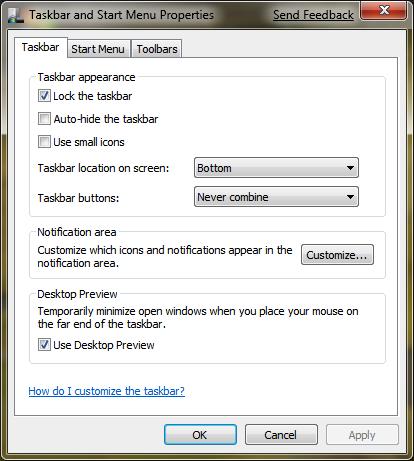
3. If you would like the icon to become smaller like Windows Vista or XP, you can tick “Use small icons” checkbox.
4. Click OK button to save the setting.
After completing above steps, you will notice that buttons shown in the taskbar has text labeled on it.
 Tip and Trick
- How To Download HBO Shows On iPhone, iPad Through Apple TV App
- Windows 10 Insider Preview Build 19025 (20H1) for PC Official Available for Insiders in Fast Ring – Here’s What’s News, Fixes, and Enhancement Changelog
- Kaspersky Total Security 2020 Free Download With License Serial Key
- Steganos Privacy Suite 19 Free Download With Genuine License Key
- Zemana AntiMalware Premium Free Download For Limited Time