
Dec 29, 2009
My Digital Life Editorial Team

How to Disable “Read-Only” Protected View in Office 2010

Protected View is a new security feature in Microsoft Office 2010 to enhance protection of computer against risky Outlook email attachments, files originated from or downloaded via Internet, files that fail validation or files that are located in potentially unsafe locations. Protected View integrates seamlessly with the enhanced file-blocking controls to reduce potential desktop attach surface, allowing users to safely view any Word, Excel or PowerPoint files without worrying about malicious binaries infection.

The only problem is that Protected View will remove support for legacy document formats, and cause documents and files deemed unsafe to be opened in read-only mode. For some Microsoft Office 2010 users, the protection may not be necessary, especially for people who knows what’s the origin and source of documents, worksheets, presentations, email attachments and other legitimate files.

Here’s how to turn off and disable Protected View of MS Office 2010:

  1. Run one of the Office 2010 application (e.g. Word 2010).
  2. Click on Office button to go to Office Backstage view menu, and select Options.
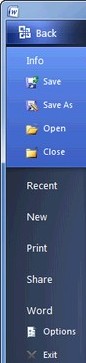
    Office 2010 Options

  3. In the “Options” dialog, select Trust Center in the left pane.
  4. Click on Trust Center Settings in the right pane.

    Trust Center Settings

  5. Select Protected View in the left pane of “Trust Center” dialog.
  6. Disable any of all of the protected view options as below by unticking the check boxes:
    • Enable Protected View for files that fail validation
    • Enable Protected View for files originating from the Internet
    • Enable Protected View for files located in potentially unsafe locations
    • Enable Protected View for Outlook attachments
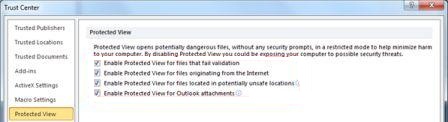
    Disable or Enable Office 2010 Protected View

  7. Click OK when done.

The above procedure has to be repeated for each and every Office 2010 apps that implement Protected View, namely Word 2010, Excel 2010, PowerPoint 2010 and Outlook 2010.

Related posts:

  1. Open, View, Edit, and Save Office 2007 Documents, Spreadsheets, Workbooks, and Presentations in Office 2003, XP or 2000
  2. Temporarily Disable IE7 Protected Mode in Vista on Ad-hoc Basis
  3. Download 2010 Calendar Templates for Office 2007 & Office 2003
  4. Ways to Turn Off and Disable Vista IE 7 Protected Mode
  5. Free Download: Vista and Office 2007 Preview Handler Pack to Support More File Types

13 Comments

  • So, for those of you who have not been able to get the above to work, it may be because you’re loading the file from a “non-trusted” location. For example, the steps above did not work when I tried loading the document off of my USB/flash drive, but, when I copied that very same file directory to my documents directory instead of accessing from the USB/flash drive, it loaded and executed fine.

    So, try doing the above steps and then copy the file to a “safe” location, for example, the My Documents folder.

    Hope this helps the folks who haven’t been able to get the above steps to work!

    • i had this very issue. had to change security settings on my portable hard drive.

  • Doesn’t work! I have a document that runs a userform programmed in Word 2003 but even after doing the above it still opens in protected view.

    Please update instructions–seems like a LOT of people have posted that the info above does NOT work. Might be good to look into why that might be…. (;

  • I have a little different issue and can’t seem to find a fix.

    Excel 2010 created a file and shared it off a network drive. When one user has the file open another user tries to open with Excel 2010 and it tells him READ ONLY.

    The issue is, a user opens the spreadsheet with Excel 2003 in compatibility mode and it will NOT open in READ ONLY.

    Is there a fix for 2003 concerning this issue

  • This does not work – the file is still a read only and no changes can be saved without creating a new file name. Please help

  • This has not worked. It still open in read only mode. It simply removes the pop up asking you to “enable editing”.

  • These tips did not work on my issue. Any file created in 2007 opens as a read only. after making these changes it still has the same issue. any other ideas?

  • this did not work on my issue. Any file created in 2007 opens as a read only. after making these changes it still has the same issue. any other ideas?

  • Thank you for this ainformation. It was extremely helpful, and solved a problem I've struggled with for 2 months now.

  • I upgraded to Office 2010 and the enable proteceted view worked just upgraded my laptop and the sam feature doesn't work. Go figure! THe only otyher vwork around is toin Outlook under actions when you open an email choose edit and you can do everything the same again. just one more step in the process.

    Would still like to understand why the original fix enable/disable function does not work.

  • This did not work for me.

  • gosh, thanks, great tip! It was bothering me so much. I was wondering why outlook exchange doesn't understands documents are sent from a colleague within the company.
    Anyway, now it works great

  • I can see "trust center" but it won't let me click it. what the hell?

Leave a comment

Notify me of followup comments via e-mail. You can also subscribe without commenting.

Subscribe

Free email subscriptions
Get latest updates in email for free:

Translate This Page