How to Check if Windows 10 / 8 / 7 / Vista / XP / Server System Is 32-bit or 64-bit (x86 or x64) Version
You may receive a computer as a gift, and want to find out whether the Windows operating system that is installed on the PC is either a 32-bit or 64-bit (Microsoft labels them as x86 or x64) based operating system, which requires specifically built software application (See also x86 or x64 OS). For computer or PC that has been installed long time ago and user forgets about its version, or has changed owner several times, and user no longer sure whether he or she is running a 32-bit or 64-bit (x32 or x64) version of Windows operating system, use following methods to determine and find out which version actually it’s.
Windows 10 / Windows 8.1 / Windows 8 / Windows Vista / Windows Server 2008 / 2012 / 2016 (R2)
Method 1
Click Start, then click on Run or Start Search.
Type msinfo32.exe or System Information, and then press Enter key.
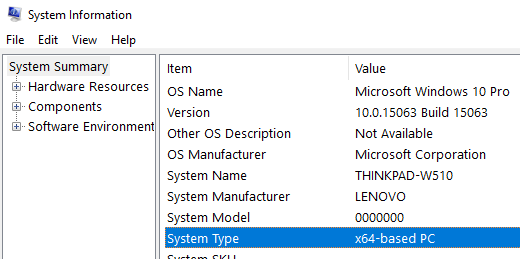
In “System Information”, review the value for the System Type item under System Summary tree heading:
For 32-bit editions of Windows, the value of the System Type item is x86-based PC.
For 64-bit editions of Windows, the value of the System Type item is x64-based PC.
Method 2
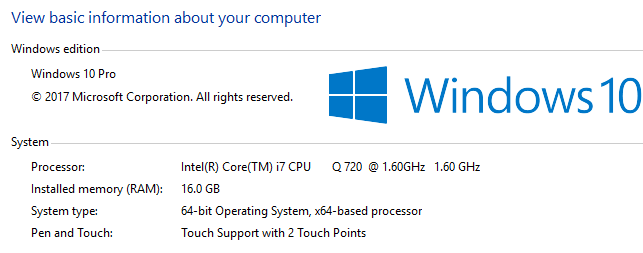
Go to Control Panel -> System and Security -> System.
The operating system appears as follows:
For a 64-bit version operating system: 64-bit Operating System appears for the System type under “System” section.
For a 32-bit version operating system: 32-bit Operating System appears for the System type under “System” section.
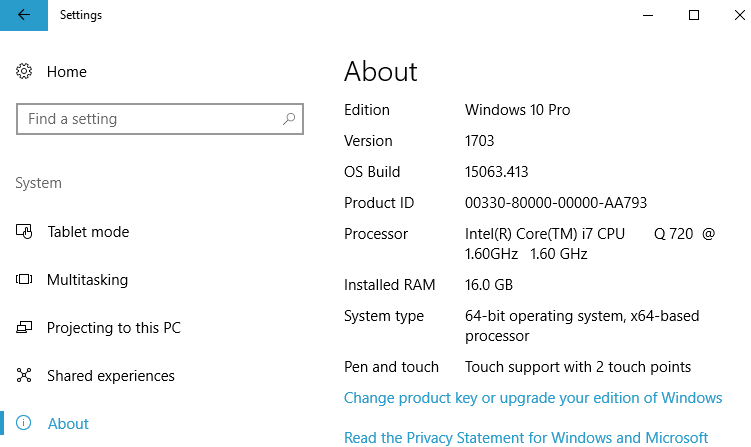
In Windows 10, you may have information about the architecture of CPU processor too, e.g. 64-bit operating system, x64-based processor.
Under System type, you’ll be able to view the following:
For a 64-bit version operating system: 64-bit operating system, x64-based processor
For a 32-bit version operating system: 32-bit operating system, x86-based processor
32-bit Windows can be installed only x64-based processor too. Thus, the later part of information about type of processor can be ignore as it represents hardware type, but not the edition of Windows installed.
Microsoft Windows XP Professional and Windows Server 2003
Method 1
Click Start, then click on Run or Start Search.
Type msinfo32.exe and then press Enter key.
In “System Information”, review the value for the System Type item:
For 32-bit editions of Windows, the value of the System Type item is x86-based PC.
For 64-bit editions of Windows, the value of the System Type item is x64-based PC.
Method 2
Click Start, click Run, type sysdm.cpl, and then click OK.
Click the General tab. The operating system appears as follows:
For a 64-bit version operating system: Microsoft Windows XP Professional x64 Edition Version <Year> appears under System.
For a 32-bit version operating system: Microsoft Windows XP Professional Version <Year> appears under System.
<Year> is a placeholder for a year.
Method 3
Click Start, click Run, type winmsd.exe, and then click OK.
In the details pane, locate Processor under Item. Note the value.
If the value that corresponds to Processor starts with x86, the computer is running a 32-bit version of the Windows operating system.
If the value that corresponds to Processor starts with ia64 or AMD64, the computer is running a 64-bit version of the Windows operating system.
LK is a technology writer for Tech Journey with background of system and network administrator. He has be documenting his experiences in digital and technology world for over 15 years.Connect with LK through Tech Journey on Facebook, Twitter or Google+.

 In Windows 10, you may have information about the architecture of CPU processor too, e.g. 64-bit operating system, x64-based processor.
 32-bit Windows can be installed only x64-based processor too. Thus, the later part of information about type of processor can be ignore as it represents hardware type, but not the edition of Windows installed.