How to Change Screen Resolution and Display Colors Quality in Safe Mode of Windows
Whenever there is any system problem, especially the dread BSoD (Blue Screen of Death), most users first reaction is probably to go into Safe Mode to try to troubleshoot Windows. Safe Mode loads and starts just basis files and drivers necessary to run Windows.
Most drivers, including manufacturer’s driver to display adapter (graphic processing unit or accelerator GPU) is not been loaded. Thus, by default, Safe Mode normally has a screen resolution of just 800×600, causing a lot of components cannot be displayed and shown completely on screen, including the Start Menu and desktop icons, which has been messily realigned.
The worst part is that it seems like there is no way to change the any display settings such as desktop resolution and color quality at all. When user goes to Display Properties (in Windows XP) or Display Settings (in Windows Vista, Windows 7, Windows 8, Windows 8.1, Windows 10 or later), and try to change the screen resolution to higher resolution such as 1280×800, 1440×900, 1680×1050, 1920×1200, 2560×1600 (for 16:10 aspect ratio), 1024×576, 1152×648, 1280×720, 1366×768, 1600×900, 1920×1080, 2560×1440 and 3840×2160 (for 16:9 aspect ratio), which is commonly used as native resolution in today’s modern LCD, LED or OLED display panels, the Windows in Safe Mode simply does not respond to the OK or Apply button, and does not apply the change made.
Here’s a trick to change the screen resolution and color quality display settings in Safe Mode of Windows, without any registry hack or third party program.
Go to “Display Properties” (Windows XP) or “Display Settings” (Windows Vista, Windows 7) or “Screen Resolution”(Windows 8, Windows 8.1, Windows 10 or later) by right click on empty blank space on Desktop, then select Properties (Windows XP) or Personalize (Windows Vista and Windows 7) or Screen Resolution (Windows 8 and Windows 8.1) or Display settings (Windows 10).
Note
Alternately, go to Control Panel -> Appearance and Personalization -> Adjust screen resolution (in Category view) or Settings -> System -> Display (in Windows 10).
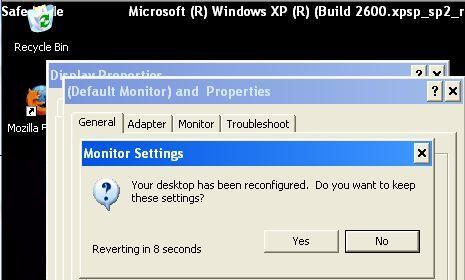
Then change the resolution by sliding the Low to High slider bar. Do not press “OK” or “Apply” at this time. Instead, click on Advanced Settings, and then click OK. Windows in Safe Mode will change the screen resolution according to new settings, and prompt a “Monitor Settings” dialog box prompting that desktop has been reconfigured, with countdown timer. Click on Yes to keep the new settings.
Alternatively, simply click on Advanced, go to Adapter tab (or Display adapter properties in Windows 10), then click on List All Mode. Select a mode with screen resolution size and color mode that you prefer, and click on OK. Windows will apply the new resolution size and color quality on Safe Mode too.
LK is a technology writer for Tech Journey with background of system and network administrator. He has be documenting his experiences in digital and technology world for over 15 years.Connect with LK through Tech Journey on Facebook, Twitter or Google+.