Get and Enable Windows Vista Aero Glass Transparency Effect and Desktop Windows Manager (DWM)
Windows Aero is hardware-based premium visual experience or graphical user interface that implemented in Windows Vista installed in Vista Premium Ready PC, which includes effects such as transparent glass design, subtle window animations, animated cursors, new window color and eye candy. Aero is actually acronym (or backronym) for Authentic, Energetic, Reflective and Open. Windows Aero requires high system specifications in order to work, with the minimum requirements of at least 1 GHz 32-bit (x86) or 64-bit (x64) processor, 1 GB (gigabyte) of system memory and a DirectX 9 compatible graphics accelerator processor card with a minimum of 128 MB of Video RAM, installed with Windows Display Driver Model (WDDM) driver. But Aero can work on slightly less powerful system. If your Windows Vista Aero user interface (UI) doesn’t work or disable, here are few suggestions and troubleshooting steps that you can check to enable Aero in Windows Vista.
If you have fulfill the requirements, but the Aero user interface still doesn’t work, unable to run or still disable, try the following troubleshooting guide. As mentioned, Windows Aero interface or Desktop Window Manager windowing system that enables the Windows Aero user interface in Vista can run and work on system with slightly lower specification, such as on 64MB WDDM compatible graphics card for LCD flat panel up to 17-inch or larger, depending on resolution, and on system with less RAM memory i.e. 512 MB.
Step 1
Windows Aero is only available on Windows Vista Business, Windows Vista Enterprise, Windows Vista Home Premium, and Windows Vista Ultimate. To find out which edition of Windows Vista you have on your computer, open Welcome Center by clicking the Start button, click on Control Panel, then open System and Maintenance, and then click on Welcome Center. The edition of Windows Vista you’re running is displayed with your computer details near the top of the window.
Step 2
Sometimes Windows Vista may wrongly detect that the graphics adapters are not sufficiently powerful for Vista to automatically enable Aero. In this case, user can manually enable Aero.
Click on the Start button and then click on “Control Panel”.
Click on “Appearance and Personalization”.
Click on “Personalization”.
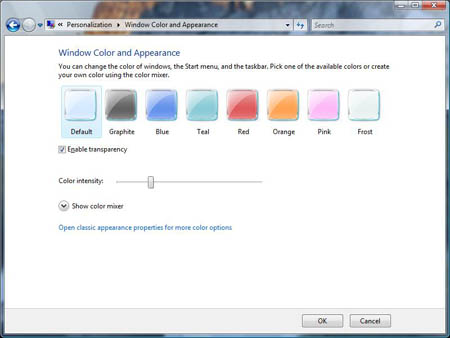
Click “Window Color and Appearance”.
Click on “Open classic appearance properties for more color options”.
Select the Windows Aero color scheme.
Step 3
Vista Aero may need 32-bit colors to work. Open “Display Settings” by clicking on the Start button, then open “Control Panel” and then click on “Appearance and Personalization”. Next, click on “Personalization” and then click on Display Settings. Under “Colors”, select “Highest (32 bit)”, and then click OK (If you can’t select 32 bit, check that your resolution is as high as possible).
Step 4
Windows Aero needs monitor refresh rate that higher than 10 Hz. Open Display Settings by clicking on the “Start” button, then open “Control Panel” and then click on “Appearance and Personalization”. Next, click on “Personalization” and then click on “Display Settings”. After that, click on “Advanced Settings”. Click the “Monitor” tab, and then click a refresh rate that’s higher than 10 hertz. (The monitor will take a moment to adjust, click Apply to keep the changes, click Apply. If you don’t apply the changes within fifteen seconds, the refresh rate will revert back to your original setting. Beside, the refresh rate affect all users who log on to the computer.)
Step 5
Windows Aero may also need Windows Vista desktop theme to run properly. Open Theme Settings by clicking the “Start” button, then click on “Control Panel” -> “Appearance and Personalization”, and go into “Personalization”, and then click on “Theme” button. In the Theme list, select “Windows Vista”, and then click OK.
Step 6 – Enable Aero Glass Transparency Effect or Windows Frame Transparency
To turn on window frame transparency or Aero Glass feature, the color scheme must first be set to Windows Aero (step 2). Then click the “Start” button, click “Control Panel”, click “Appearance and Personalization”, click “Personalization”, (or you can right-Click on a blank area of desktop, and then select “Personalize” from the right click context menu), and then click “Window Color and Appearance”. Select and check the “Enable transparency” option.
Step 7
If your system only have memory of 512 MB RAM or less, Vista will not automatically enable Aero on such system. And you won’t be able to enable Aero via any of the above steps too, as users will only able to see “Windows Vista Basic” schemes and options in Appearance Settings for such system.
However, Aero can still be enable with the following workaround trick, as long as it has Aero supported graphic cards, if it’s still not available after the above 6 steps.
Go to Start button, then click on Run.
Run “regedit”.
Browse and navigate to HKEY_CURRENT_USER\Software\Microsoft\Windows\DWM\ registry branch.
On the following registry subkeys, edit and change the default value:
Composition to 1 CompositionPolicy to 2
Exit registry editor.
Go to Start and click on Run again.
Execute and run the following commands one by one:
net stop uxsms net start uxsms
Step 8
If you still cannot get Aero, or the Aero Glass transparency on WDM is not working yet. Try to use the following registry hack.
Go to Start button, then click on Run.
Run “regedit”.
Browse and navigate to HKEY_CURRENT_USER\Software\Microsoft\Windows\DWM\ registry branch.
On the following registry subkeys, edit and change the default value:
ColorizationOpaqueBlend to 1 CompositionPolicy” to 2
Exit registry editor.
Go to Start and click on Run again.
Execute and run the following commands one by one:
net stop uxsms net start uxsms
Alternatively, copy and paste the following text into a text editor, save it as a file with .reg extension. Then double click on the registry registration file just saved, and insert or merge the new registry value in to the registry.
Windows Registry Editor Version 5.00

[HKEY_CURRENT_USER\Software\Microsoft\Windows\DWM]
"ColorizationOpaqueBlend"=dword:00000001
"CompositionPolicy"=dword:00000002
Restart Desktop Window Manager Session Manager in Services Manager or simply run “net stop uxsms” and then follow by “net start uxsms” in Command Prompt.
LK is a technology writer for Tech Journey with background of system and network administrator. He has be documenting his experiences in digital and technology world for over 15 years.Connect with LK through Tech Journey on Facebook, Twitter or Google+.