
Jul 4, 2010
My Digital Life Editorial Team

Fix Windows 7 Jump Lists Missing or Does Not Display Recent Items or Pinned Files

Windows 7 Jump Lists contains a list of recently used, opened, visited, or accessed items; or frequently used, opened, visited, or accessed entries; or most visited web pages, in addition to common tasks for the application programs’ icons or buttons on Taskbar. The history, collectively called recent items, can be pinned to make it permanent, provides easy access to the file without searching or navigating the folder.

However, on some Windows 7 system, user may experience issue where the recent items and also the pinned entries on Jump Lists does not been displayed or shown, missing or been cleared and removed without reason. Jump Lists does open when user right clicks on the icon or button on Taskbar, however, the dynamic recent items list on top of the Tasks section on Jump Lists does not appear.

The symptom is known to be at least happening to JumpLists of Office 2007 applications, such as Word 2007, Excel 2007 and PowerPoint 2007. The problem occurs despite a lot of documents and files have been opened by the program. And user does not delete and clear the Jump Lists recent items too.
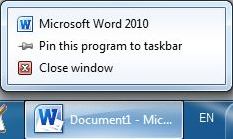
Jump Lists Lose Recent Items List

The issue may happen because one of the Jump Lists’ recent items in automaticDestinations hidden system folder is corrupted.

Delete or clear Jumplist recent items in Windows 7 that is corrupted in AutomaticDestinations-hidden system folder is the likely solution.. To resolve and fix the issue, follow these steps:

  1. Open Windows Explorer.
  2. Type or copy and paste the following into the address bar:

    %AppData%\Microsoft\Windows\Recent\AutomaticDestinations

  3. Identify files that are comparatively larger in size than the rest of the file, such as files that have file size of 1 MB or more.

    Delete the abnormal file.

    Tip: If you does not want to retain the Jump Lists’ recent items history on all applications, just delete all the automaticDestinations-ms files in the folder.

  4. The recent items functionality on Jump Lists will be restored. The recent items on the Jump Lists will be re-added as the program is been used. However, do note that the solution does not restore the previously pinned items. So user will have to pin new items again.

Related posts:

  1. How to Delete and Clear Recent Items in Windows 7 Jump Lists
  2. Change (Increase or Decrease) Number of Recent or Frequent Items Displayed in Windows 7 Taskbar Jump List
  3. Clear Recent Items List in Windows Vista
  4. Windows 7 Task Bar (Superbar) Jump Lists for Application Icons
  5. Slide Open Windows 7 Jump Lists

37 Comments

  • This did not work for me. I was having trouble with only Excel, now all of my jump lists are gone.

  • awesome brother. thanks

  • This worked for everything, except Excel, which is still broke despite my deleting everything in that folder.

    %AppData%MicrosoftWindowsRecentAutomaticDestinations

  • Thanks, mate! After hours of trying, and a half hour call to HP, this solved the problem!

  • Thanks it worked fine for. Added this tip in our KB. en français : réparer la liste des fichiers récents Windows 7.

  • just been tried… works great… thanks aloooot…

  • Searched for hours without luck, then I found your post. Worked perfectly – huge thanks!

  • Thanks. It worked perfectly. Good Post!!!

  • Thanks a loooooooooooooooooooooooooooottttttttttttt !!!!!!!!!!!!!!!

  • Wonderfulllllllllllllllllllllllllllllllllllll

  • Excelent post!!! completelly functional… TY!

    Greetings from MX.

  • WOW!! simple and effective solution!! thanks!!

  • Thanks for the help – it worked perfectly!

  • Thank you, it worked perfectly!

  • Worked! I have been frustrated with this for a long time.

    Thanks,

    Chris

  • Great ! This helped me a lot

  • Thanks for the solution! worked for me!

  • Really helpful! And to think I was about re-installing Windows…

  • ran the office diagnostics program in the options on excel now everything working fine

  • this worked for all of office applications except excel. Is there something else to try?

  • Thanks – looked everywhere for a solution and this was easy and works perfectly :)

  • thank-you, thank-you, thank-you. This has been bothering me for some time.

  • Thank you for that solution, that worked for me.

    :-)

  • Thank you for the solution.

  • Great! This helped alot!!

  • Brilliant, thank you.

  • Thanks for the great solution!

  • That solved my issue.
    I deleted 3 files over 1 meg. All recent items cleared but no problem. The menu started to fill again. Thanks for the tip;)

  • Great solution!
    I have spend hours searching and trying to fix this.
    Now works fine!

  • I've been looking for a solution to this problem for hours and this finally fixed it. Thank you very much.

  • Worked! Thanks for your help.

  • Thank you! That seems to have fixed it. Windows still has a bug people. 2010-11-01

  • So why does this happen a lot?! Damn windows.

  • Works flawless, is better delete all of them. Thanks for the tip. I'm gonna translate to spanish so future fellows see this fix. JUMPLIST FALTA O NO APARECE ARREGLAR

  • thanks, it works great

    The windows explorer's jump list suddenly won't show up, but this article just solve the whole thing

  • thank you, this really solved my problem..

  • The sizes of the files were not shown, so I deleted all of them. It worked perfectly. Thanks much!

Leave a comment

Notify me of followup comments via e-mail. You can also subscribe without commenting.

Subscribe

Free email subscriptions
Get latest updates in email for free:

Translate This Page