
Jan 1, 2009
My Digital Life Editorial Team

Fix Network, Clock, Volume and Power (Battery) System Icons Missing with Disabled or Grayed Out Check Box Options

Clock, Volume, Network and Power or Battery icons on notification area (system tray) is system icons that users can choose to display or hide. However, sometimes, any or all of these system icons can disappear, missing or hiding from systray area. The easy solution is to re-enable the showing of system icons on Notification Area tab of Taskbar and Start Menu Properties. However, sometimes, even the checkboxes to enable or disable the displaying of system icons are disable or grayed out, forbidding user from enabling the icons in notification area.
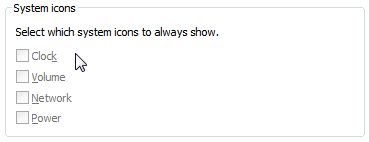
System Icons Enable/Disable Checkboxes Grayed Out Disabled

The problematic issue can happen if Windows group policy disables the Clock, Network, Power (or Battery), and Volume icons, or the registry keys related to notification area icons have corrupted. To re-enable and restore the check boxes, and hence user able to restore these system icons on notification area, the policies have to be turned off, and the registry keys reset, cleared or fixed. Note that Power icon may remain grayed out unless your computer is a notebook or laptop, or has a UPS battery backup connected to it.

Enable System Icons via Local Group Policy Editor

  1. Run GPedit.msc to start Local Group Policy Editor.
  2. Expand the tree to go to User Configuration -> Administrative Templates -> Start Menu and Taskbar.
  3. Change set the state value to Disable or Not Configured for the following group policies to enable showing or displaying of the icon in the notification area.

    Clock: Remove Clock from the system notification area
    Volume: Remove the volume control icon
    Network: Remove the networking icon
    Power (battery) Icon: Remove the battery meter

  4. Close the Local Group Policy Editor.
  5. Restart Explorer, Log off and log on again, or restart computer to make the change effective.

User who uses Windows without Local Group Policy Editor can modify the registry value via Registry Editor instead.

Turn On System Icons for Displaying or Showing via Registry

  1. Run Registry Editor (RegEdit.exe).
  2. Navigate to the following registry key:

    HKEY_CURRENT_USER\Software\Microsoft\Windows\CurrentVersion\Policies\Explorer

  3. Delete and remove the following registry values in the right pane:

    HideClock
    HideSCAPower
    HideSCAVolume
    NoAutoTrayNotify
    HideSCANetwork
    NoTrayItemsDisplay

  4. Then, navigate to the following registry key:

    HKEY_LOCAL_MACHINE\SOFTWARE\Microsoft\Windows\CurrentVersion\Policies\Explorer

  5. Again, delete any of the following registry values if found:

    HideClock
    HideSCAPower
    HideSCAVolume
    NoAutoTrayNotify
    HideSCANetwork
    NoTrayItemsDisplay

  6. Exit Registry Editor.
  7. Exit Explorer and restart, Logoff and login again, or reboot PC to apply the changes.

Fix IconStreams and PastIconsStream Registry Subkeys Corruption

If your computer is not affected by group policy (all policies have shown to be enabling the system icons), then the possible root cause for the Clock, Volume, Power and Network system tray icons to go into hiding, missing and disappearing from notification area is invalid or corrupted registry key entries of IconStreams and PastIconsStream. Microsoft KB945011 explains that “when the system or an application wants to put an icon in the notification area, the system or the application sends a discrete communication message to the operating system shell. If the operating system is very busy, that message may expire, or may time out. When this time-out occurs (such as shutdown prematurely), the icon does not appear in the notification area.” However, the error can happens more frequently than the cause specified by Microsoft.

To make the icons reappear, and enable the check boxes for the system icons, delete the specific registry keys.

  1. Run Registry Editor (RegEdit.exe).
  2. Navigate to the following registry key:

    HKEY_CURRENT_USER\Software\Classes\Local Settings\Software\Microsoft\Windows\CurrentVersion\TrayNotify

  3. In the right Details pane, delete the IconStreams registry entry.
  4. In the right Details pane, click the PastIconsStream registry entry.
  5. Exit Registry Editor.
  6. Restart the Explorer.exe process.

All-in-One Registry Hack to Fix and Show Notification Are System Icons Disabled Issue

The following registry hack file contains all fixes listed above, and when apply, will delete all policies to disable the system icons, and reset and restore the notification tray icon streams to clean state.

Download FixTrayIcons.reg

Related posts:

  1. Volume, Battery (Power) or Network Icon Disappear or Missing from Vista Taskbar Notification Area (System Tray)
  2. Disable and Turn Off System Tray (Notification Area) to Hide Icons in Windows XP and Vista
  3. How to Enable the Registry Editor When Disabled by Administrator
  4. System Tray Icon Missing from System Tray in Windows XP
  5. Display Clock on the Taskbar Replacing Battery Indicator

78 Comments

  • I had tried a lot of the individual solutions, but could not get it to work. Then, I downloaded the registry hack, ran it, and stopped ALL running explorer tasks: in the Task Manager, sort by name by clicking the name header, and kill all of those explorer tasks until the Windows start menu (the line usually at the bottom) is gone too. Only then restart explorer from the Task Manager (File|New Task: explorer.exe).
    This finally did it for me.

    Thanks a lot!

  • Thanks a lot! Extremely helpful!

  • Below is what I did to enable the grayed-out Volume checkbox and add the missing volume icon back to the taskbar on my PC that is running Windows Vista.
    (To see if these instructions might help you on your PC that is running Windows Vista, find out if your Volume checkbox is grayed out. Right-click in an open area of the taskbar. Select Properties. Click on the Notification Area tab. The Taskbar and Start Menu Properties window appears. If you cannot click on the Volume checkbox that is on this window because it is grayed out (disabled), the instructions below may help you to enable the Volume checkbox and add the missing Volume icon back to the Taskbar:
    1. Start Task Manager (right-click on the time in the taskbar and select Task Manager).
    2. Select File -> New Task (run…). The Create New Task window appears. The drop-down menu to the side of Open: is blank if you have not used New Task (run…) before; otherwise, it may be populated with the path to whatever task you last started.
    3. Click on Browse. WindowsSystem32 opens to display the folders and files in it.
    4. In the Search box, type Snd or SndVol.exe to find the SndVol.exe process. The icon for SndVol.exe appears.
    5. Single-click SndVol.exe to select it, and click Open.
    The Create New Task window reappears. Notice that the Open: drop-down menu now displays the path to SndVol.exe.
    6. Click OK. The sound Mixer opens.
    (If you want to see that SndVol.exe now appears among the list of Processes, click on the Windows Task Manager Processes tab.)
    7. Close the Mixer (I muted my Mixer before closing it because I wanted it mute, and the mute button on my computer was not operational while the Volume Mixer icon was missing from the taskbar). After you close the Mixer, SndVol.exe disappears from the list of Processes.)
    8. If desired, close Task Manager; otherwise, go to Step 9.
    9. Right-click in an open area of the taskbar and select Properties. The Taskbar and Start Menu Properties window opens.
    10. Click on Notification Area. The Volume checkbox should no longer be grayed out.
    11. Click on the Volume checkbox to place a checkmark in it.
    12. Click on Apply.
    13. Click on OK.
    14. The Mixer icon should now appear in the Taskbar again and function as it did before.

  • For me editing registry – class -> local settings -> … worked perfectly, thank you very much for putting it there, not something easy to figure out. Thanks again!

  • My volume control icon disappeared and the checkbox to enable it is grayed out. I tried to follow the advice on http://www.mydigitallife.info/2009/01/01/fix-netw… to fix it, but ran into the following problems:

    When I searched for gpedit.msc on hard drive in start menu, the same “gpedit” 143 KB file came up four times. Each time I clicked on one I got the message: “MMC could not create the snap in”.

    So I went to Plan B and tried to open the following file in Registry Editor as stated:

    HKEY_LOCAL_MACHINESOFTWAREMicrosoftWindowsCurrentVersionPoliciesExplorer

    However, the file “Explorer” doesn’t exist under “Policies”, although a separate “Explorer” folder under “Current Version” does, with several sub-folders.

    On to Plan C. I am instructed to open the following folder:

    HKEY_CURRENT_USERSoftwareClassesLocalSettingsSoftwareMicrosoftWindowsCurrentVersionTrayNotify

    However, “TrayNotify” doesn’t exist under “Current Versions”.

    My last option listed on the page is to download a hack file to fix tray icons. Can I trust this? Can anyone help me? I have Windows 7.

  • hallelujah! the GPedit.msc is a great fix, thanks so much….now i've got a problem with a wireless bluetooth device i'd like some help with…ha

  • THANK YOU!!!! THANK YOU!!!! THANK YOU!!!! THANK YOU!!!! THANK YOU!!!!
    Did I say THANK YOU!!!!??? THANK YOU!!!!
    I searched on this for about a week off and on and came close to throwing my laptop across the room…..The IconStream fix is what finally did it after trying a good dozen other fixes….

    Thanks again!

  • Sure some aggravating crap popping up all over this web page

  • The Registry Fix works like a charm.. Added the .reg file values to registry. Ended the Explorer process from taskmgr and restarted the process again and Voila!!

    Nice Work!

  • SERIOUSLY! I HAVE TO DO ALL OF THIS FOR A NEW 2100$ LAPTOP. I'M A LAW STUDENT WITH AN ASSIGNMENT DUE AND FINALS IN 2 WEEKS. I DON'T HAVE TIME FOR THIS! THIS IS WHY MICROSOFT IS THE PINNACLE OF INFERIORITY. STUPID STUPID PEOPLE. I'M BUYING A MACBOOK AS SOON AS MY EXAMS ARE OVER!

    HOW THE HELL PEOPLE SUPPOSED TO USE WINDOWS FOR WORK IF THEY SO BLASTED UNRELIABLE.

    • Quit your bitchin, dude. If you have the time to post a comment, you have the time to fix the issue. Be glad someone put this up to help you. Also, you icon's availability has nothing to do with you typing a term paper. Chill.

    • If you’re a law student, you should know that there’s a law against typing an entire comment in caps.

  • Thank you, Thank you, Thank you!!!!

    Downloaded FixTrayIcons.reg

    Worked like a charm. Whole thing took less than 2 min.

    You rock!!!

  • THANK YOU !

    wasted way too much time with this problem. this is one of the reason I will buy my mother a MAC !

  • This one just worked for me, THANK YOU!!! I will bookmark this solution—->Fix IconStreams and PastIconsStream Registry Subkeys Corruption

  • The iconstream/pasticonstrem works for me, but the problem returns after a couple of weeks. Do you guys have any ideas on what the root cause of the problem might be?

  • @T Run Registry Editor (RegEdit.exe) means:

    1. press "Win + R"

    2. type "regedit" (without quotes)

    3. press "Enter"

    4. explode brain and feel embarrassed for writing worthless comment (we are all frustrated by Windows Annoyances(tm), but we do not annoy each other with our Windows Annoyances(tm) spawned frustrations)

  • Wow. Thank you so much for the information. I followed the directions and it worked.

  • @T You are a moron and unworthy to fix your own computer. Take it to a repair shop and let someone do it that has a clue.

  • Was very helpful. Thanks!

  • thank you…. it worked!!!

  • Gracias, me funciono!

  • Hey!

    I used "Fix IconStreams and PastIconsStream Registry Subkeys Corruption" method and i dare to say that it worked!

    Thanks!

    You rock!

  • None of this worked for me…anyone have any other suggestions? Still missing the battery and volume icons.

  • To open any of those things is quite easy.

    When you click the Start icon or Flag in Windows 7/Vista you can just start Typing something like RegEdit then hit Enter and it will open it for you.

  • Many thanks, found your post on Google. The last registry change is what fixed my Vista laptop.

  • Stop being a prick. Go somewhere else for your tech fixes if this site annoys you.

  • This is just worthless. Did you ever think that you should tell how how to run those programs? I have no clue how to run the registry editor or whatever the hell "GPedit.msc" is, so this advice is completely worthless.

Pages: 1 2

Leave a comment

Notify me of followup comments via e-mail. You can also subscribe without commenting.

Subscribe

Free email subscriptions
Get latest updates in email for free:

Translate This Page