
Firefox 4 has added GPU hardware acceleration support for graphics rendering, which intends to make browsing of Internet faster by switching to let display adapter to process visual output for performance improvement, which is what the graphics card intended for. Firefox 4 makes use of Direct2D (D2D) and DirectWrite (DW) text and graphics APIs to provide hardware-accelerated rendering of 2-D geometry, bitmaps, and text.
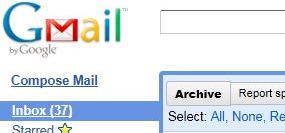
Bold font display on Firefox 4 with hardware acceleration enabled
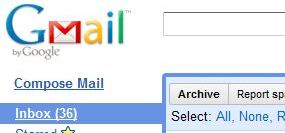
Incorrect font display on Firefox 4 with hardware acceleration disabled
However, the hardware acceleration feature of Firefox 4 does come with a major downsize, which is that Firefox renders fonts not so smoothly leading to faded, aliased, hazy, porous, fuzzy, blurry, and bad fonts in text display which may be unreadable, and definitely messy and ugly. Worse, some text appears to be fatter, bigger, bolder, wider and larger instead, causing the row width to be longer, spacing and layout out, or the text looks squeezed or squished together. The issue happens in both chrome (out of content area) and content area of Firefox.

Blur font display on Firefox 4 with hardware acceleration enabled

Normal standard font display on Firefox 4 with hardware acceleration disabled
If you’re having the blurry and bad font rendering issue in Firefox 4, here’s a workaround to fix the font issue in FF4, by turning off the hardware acceleration support in the Firefox’s options.
- Click on Firefox menu and go to Options -> Advanced section -> General tab.
- Unselect and untick the check box for Use hardware acceleration when available.
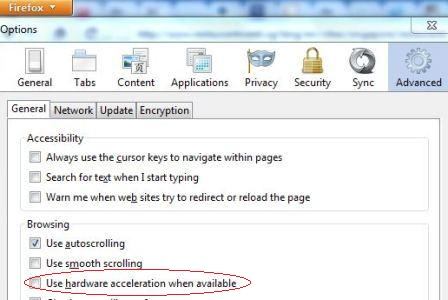
- Restart Firefox.
Alternatively, if you prefer not to completely disable the hardware acceleration support of Firefox, it’s possible to partly disable hardware acceleration by Direct2D and DirectWrite by changing advanced settings of the Firefox:
- In the address bar, type in about:config and hit Enter.
If promoted with a “This might void your warranty!” warning, click on I’ll be careful, I promise! button.
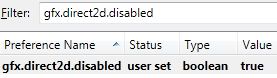
- Search for gfx.direct2d.disabled preference name.
- Double click on the preference to set it to True.
- Search for gfx.font_rendering.directwrite.enabled preference name.
- Double click on the preference to set it to False.
Note: By default the setting should be “False”. It’s not necessary to set it to “True” in order for DirectWrite to work, as where Direct2D (hardware acceleration) is turned on and enabled, Firefox cannot use GDI so DirectWrite will be used regardless of the setting for gfx.font_rendering.directwrite.enabled preference. However, the preference does work with hardware acceleration disabled, or if you’re using D3D9 hardware acceleration.
- Restart Firefox.
Once restarted, the font will be rendered as GDI clearly and smoothly. However, do note that the trick actually disable the hardware acceleration support for most 2D items such as fonts, which unavoidable will affect the speed and performance of 2D rendering of text and widgets. If you intend to use hardware acceleration in Firefox, here’s another alternative workaround to fix the font issue in Firefox 4, but may work or may not work for your system depending on graphics processing unit (GPU) configuration.
The trick is to disable and turn for anisotropic filtering in the GPU control panel, at least for Mozilla Firefox application. How’s how to disable anisotropic filtering in Mozilla Firefox for system using nVidia graphics card:
- Open nVidia Control Panel (Right click on Desktop or go to Control Panel -> Appearance and Personalization).
- Go to Adjust image settings with preview, and select the radio button for Use the advanced 3D image settings.
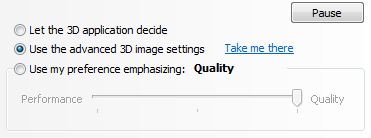
- Then, click on Take me there or go to Manage 3D settings.
- Under Global Settings tab, ensure that Anisotropic filtering is set to Application-controlled.
- Go to Program Settings tab, and select Mozilla Firefox from the “Select a program to customize” drop down list.
Note: If Mozilla Firefox is not found, manually add it in by browsing to its firefox.exe executable.
- Set the Anisotropic filtering to Off for Mozilla Firefox.
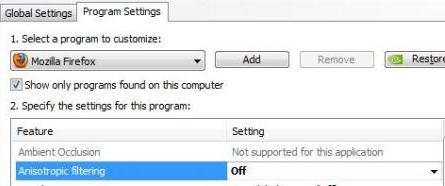
- Restart Firefox.
Tip: It may be possible to revert back to “Let the 3D application decide” for “Adjust image settings with preview” if you don’t restart the Firefox often.
 Tip and Trick
- How To Download HBO Shows On iPhone, iPad Through Apple TV App
- Windows 10 Insider Preview Build 19025 (20H1) for PC Official Available for Insiders in Fast Ring – Here’s What’s News, Fixes, and Enhancement Changelog
- Kaspersky Total Security 2020 Free Download With License Serial Key
- Steganos Privacy Suite 19 Free Download With Genuine License Key
- Zemana AntiMalware Premium Free Download For Limited Time