Enable Multiple Concurrent Remote Desktop Connections or Sessions in Windows XP
Windows XP Professional and Windows XP Media Center Edition (MCE) has Remote Desktop (RDP) service that allows the computer to be remotely connected, accessed and controlled from another computer or host. However, Windows XP machine only allows one concurrent remote desktop connection from a single user been connected to it with no multiple remote desktop sessions or connections support.
Whenever there is a remote user who user Remote Desktop Connection (RDC) client to connect to a Windows XP host, the local user is disconnected with the local console screen locked, with or without his or her permission. Remote Desktop, unlike Terminal Server Services in Windows 2000, Server 2003 and Server 2008, is designed for single user use only, no matter it’s local or remote user.
Here’s a hack to unlock the single user limitation and enable multiple concurrent remote desktop connection sessions support in Windows XP Professional and Media Center Edition, using a either a patched termserv.dll or old patched cracked termserv.dll build version version 5.1.2600.2055, so that unlimited users can simultaneously connect to a computer via Remote Desktop.
- Download a copy of patched termsrv.dll (in ZIP file) which has the Remote Desktop connection limitation deactivated for your version of Windows XP:
Windows XP RTM, SP1 and SP2: termsrv.dll (version 5.1.2600.2055)
Windows XP SP2: termsrv.dll (version 5.1.2600.2180)
Windows XP SP3: termsrv.dll (version 5.1.2600.5512)For information, the termsrv.dll patch normally has the following HEX code bits overwritten with following value:
00022A17: 74 75
00022A69: 7F 90
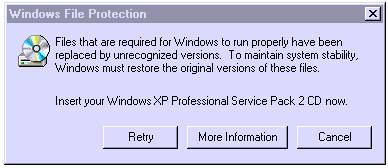
00022A6A: 16 90 - Restart the computer and boot info Safe Mode by pressing F8 during initial boot up and select Safe Mode. This step is only required if you’re currently running Windows Terminal Services or Remote Desktop service, and System File Protection has to be skipped and bypassed, else it will prompt the following error message to restore the original termsrv.dll.

- Go to %windir%\System32 and make a backup copy (or rename) the termsrv.dll.
- Rename or delete the termserv.dll in the %windir%\System32\dllcache folder.
- Copy the downloaded termsrv.dll into %windir%\System32, %windir%\ServicePackFiles\i386 (if exist) and %windir%\System32\dllcache.
- Then download and run the ts_multiple_sessions.bat (in ZIP file) to merge the registry value into registery, or you can run Registry Editor to manually add the following registry value:
[HKEY_LOCAL_MACHINE\SYSTEM\ControlSet001\Control\Terminal Server\Licensing Core]
“EnableConcurrentSessions”=dword:00000001[HKEY_LOCAL_MACHINE\SOFTWARE\Microsoft\Windows NT\CurrentVersion\Winlogon]
“AllowMultipleTSSessions”=dword:00000001 - Click on Start Menu -> Run command and type gpedit.msc, follow by Enter to open up the Group Policy Editor.
- Navigate to Computer Configuration -> Administrative Templates -> Windows Components -> Terminal Services.
- Enable Limit Number of Connections and set the number of connections to 3 (or more). The setting allows more than one users to use the computer and logged on at the same time.
- Ensure the Remote Desktop is enabled in System Properties’ Remote tab by selecting the radio button for Allow users to connect remotely to this computer.
- Enable and turn on Fast User Switching in Control Panel -> User Accounts -> Change the way users log on or off.
- Restart the computer normally.
Note that if you cannot replace or overwrite termserv.dll with access denied or file in use error, turn off the “Termine Services” in “Services” control panel of “Administrator Tools”. Besides, each connecting physical connections must have their own user account in the target host, and must authenticate with corresponding own user name and password credential.
To uninstall and revert back to original termsrv.dll, simply delete the patched version, and rename the backup copy back to “termsrv.dll”. You probably have to do it in Safe Mode if the Terminal Services is enabled and running.
If the Windows XP computer is connected to a domain on local networks, Windows will set the value of the regkey “AllowMultipleTSSessions” to “0″ every time the computer is restarted. To ensure that multiple or unlimited Remote Desktop connection sessions is allowed in AD domain environment, the value data for “AllowMultipleTSSessions” has to be set to “1″ on each system startup. To change the value, simply rerun the ts_multiple_sessions.bat every time the computer is started. Alternatively, put the ts_multiple_sessions.bat at C:\Documents and Settings\All Users\Start Menu\Programs\Startup folder so that it will be automatically run on first user with administrative privileges that logs on to the desktop. Another workaround is to install additional service or define a sub-key in HKEY_LOCAL_MACHINE\SOFTWARE\Microsoft\Windows\CurrentVersion\Run registry branch that run the registry batch file automatically on boot up, and this is useful if the computer won’t be logged on by anybody, but still requires the hack to allow unlimited Remote Desktop users to work.
Another issue is that if user closes the remote connection instead of logging off, when he or she tries to log back in, an error message related to TCP/IP event ID 4226 may occur. To resolve the issue, download and apply the Windows XP TCP/IP connection limit and Event ID 4226 patch, and set the connections to at least 50.
Related posts:
- Easily Maintain Multiple Remote Desktop Connections with visionapp Remote Desktop (vRD)
- Connect to Remote Computer using Specific Non Standard Port using Remote Desktop Connection Client
- Turn On or Enable Remote Desktop on Windows Vista
- Workaround for Remote Desktop Client to Connect to Localhost (Local Terminal Server Service)
- Remote Desktop Connection (RDP) Client 6.0 for Windows XP and 2003


I have tried this hack on my xp sp2 systems both manually step by step as well as using the patch available here: http://deepxw.blogspot.com/2009/04/universal-term… No matter what method I use, it just not working for me, can any one suggest the possible reasons.
Hi I have running windows xp sp2 systems, I have tried this hack on some systems, but it just doesn't work, I have tried first manually, then used patch available here: http://deepxw.blogspot.com/2009/04/universal-term… No matter what method I try it just doesn't work. Kindly any one suggest me the solution.
To Gerardos: How many users have you defined on your system?
its working… thanks a lot…
Hello,
Maybe someone can help me out. I have Windows XP Home on a domain. I managed to convert it to XP Pro. Managed to make contact via Remote Desktop. Managed to replace .dll's, changed the registry as mentioned above and mentioned by Navy and Tristan (double checked). However, I can still only use 1 session. The other session is logged off.
Any ideas what I've done wrong?
I have tried every possible combination so far, and it works like a charm. My 2scenarios are:
- XP Clients SP3 vs 2003 Domain Controller
- XP Clients SP3 vs 2008 Domain Controller
They both require you replace the dll even tough you can't see it where it is supposed to be.
User right assignments on both registry key and file that are required to complete the patching task are also very important.
It will not work otherwise. I am leaving my email here so feel free to contact me. I trying this solution on windows 7 also, since we are having a huge migration at work.
Regards to all in here!.
For XP Home users:
Because the Group Policy Editor (gpedit.msc) is not available in Home edition, you can still define number of connections by register editing.
1. Start -> Run (command) -> regedit
2. Find: HKEY_LOCAL_MACHINE/SOFTWARE/Policies/Microsoft/WindowsNT/Terminal Services
3. Add new DWORD value: MaxInstanceCount
4. Define the value to 3 (or any other digit)
5. Find: HKEY_LOCAL_MACHINE/SYSTEM/ and check the number of ControlSet00X (where X indicates the digit in YOUR registry)
6. Open ts_concurrent_session_patch.reg in notepad and change the ControlSet001 to number corresponding with the one you have previously found in step 5.
7. Run edited ts_concurrent_session_patch.reg script.
8. If you have more than one ControlSetOOX, you have to repeat steps 6 and 7.
9. Restart
i have installed it and is working fine with only 2 rdp terminals but it is not doing good with the 3rd one. once the 3rd system is logged on it says access denied it as already reached the limit.
Running SP3 on a domain.
1.) copied the termsrv.dll file over to %windir%System32. Saved old one as backup.
2.) Saved Reg file mentioned above to C: and allowed the "everyone" group to access it via security tab on it.
3.) Opened up Regedit Navigate to HKLMSoftwareMicrosoftWindowsCurrentVersionRun. Right click new String Value – Named it "MultipleTerminalServicesSessions" with the path being c:windows
egedit.exe /s "c: s_concurrent_session_patch.reg"
4.) Enable RDP
5.) Rebooted and it worked fine.
Notes:
** I didn't have termsrv.dll files in dllcache and did not have a service pack folder.
** I didn't modify the GPO, because GPO says if left unconfigured it will allow max connections
** I didn't change to fast switching mode. Option was not listed (I assume because this PC is on a domain)
People i need help.I am trying to log remotely with my Microsoft Windows7 on my windows server 2003 running Microsoft Great Plains Version 10 and SQL 2005.It logs fine But some icons are missing like to launch Great plains.When i test with XP it connects Fine and all programs run fine.
email solutions to mkeorapetse@gmail.com
file deleted i cant download it
Thanks! For my domain-joined XP machine, I set a Scheduled Task to run this one line on Startup:
Reg Add "HKEY_LOCAL_MACHINESOFTWAREMicrosoftWindows NTCurrentVersionWinlogon" /V AllowMultipleTSSessions /t REG_DWORD /d 1 /f
I followed your above instruction on my host computer but still can only connect one computer to it. When I try to connect another computer to the host the first computer disconnects.
Help!
is there way to not lock down the client system during a remote desktop session.
I want to use remote desktop to demo software and have both the remote and cliet able to use their keyboard and mouse
hi hank
Windows XP Home Edition: gpedit.msc (group policy) editing via registry
http://bogdan.org.ua/2007/11/15/windows-xp-he-hom…
If you are using a Domain, my recommendation is to use Task Scheduler to run the batch file. On the Task tab, make sure "Run only if logged on" is not checked, and set Run As to SYSTEM. Then on the Schedule tab, under Schedule Task select "At Logon". This will run the batch file under the SYSTEM account anytime a user logs in, which allows it to run without the first user needing to be an Administrator.
Hi there,
I have successfully got this working on my laptop.
Thanks a lot for the guide!
I have allowed 3 machines to connect at a time, but when they run Remote Desktop Connection they are immediately prompted to login with username and password. Is it possible to have the screen where you can see the users image icons and also show which ones are logged in..?
I have managed to get this screen shown on the Laptop they all connect to.
Any help would be greatly appreciated.
Thanks a lot,
squatman
It works excellent !
Thank you very much !
Still works!
Thanks!
That
termsrv.dll (version 5.1.2600.2055)
Mention for XP SP1 is wrong,
infact it was for XP Beta1 SP2
so didn't work on XP SP1 but work's on XP SP2
I am trying to run multiple sessions of RDC.
I have Winxp Home Edition (converted to Professional). I don't have gpedit.msc. I found, downloaded and executed gpedit.msc but it says "MMC could not create the snap-in".
Any help would be appreciated.
i have applied all of the recommended settings in this article and I still can't get it to work. i am on a domain.
it appears that my AllowMultipleTSSessions DWORD is auto changing back to 0. If I change it to 1 and refresh it changes back to 0.
any thoughts on why this would change back to 0 immediately?
thanks
-d
If ya think hacking termsrv.dll is someway illegal, juz copy the new termsrv.dll as termsrvx.dll in the system dir. search the registry and change the value of ServiceDll wherever found to termsrvx.dll…
and use all those registry tricks provided to enable multi login.
I was able to do an in-place replacement with Unlocker but svchost crashed right after adding the keys and I'm unable to use services/gpedit until I reboot.
Saying this is illegal is like saying,
'Now I've sold you a pair of shoes, you can only wear them with socks you buy from us to'.
or
'Now you've bought a house from us, you're not allowed to decorate the rooms the way you like, you have to use the colors we've chosen.'
The EULA probably says all sorts of things like… Now we own your soul, or congratulations you have now become a slave of the Microsoft empire.
'Hacking' terminal server to make it so it is'nt quite so shit is hardly a criminal offence along the lines of drunk driving, murder or rape now is it.
I think we use common human intelligence and just ignore the opinions of Microsoft in this case.
I think I'll set up an EULA every time I sell someone a cup of tea and when they are in breach of the EULA I can evict them from their home and send them to jail for 70 years – sounds fair…… NOT!
@ Nate :
How is this illegal?
Hacking the termsrv.dll is, at most, a breach of the EULA.
This is as illegal as changing from Autolite to Champion spark plugs….
This is illegal, BTW.
I followed the steps.. I can logon remotely just cant control the keyboard and mouse???
can anyone help?
Thanks. Other techniques worked on one of my computers but other computers wouldn't take those fixes. Yours worked great (just had to go over the steps again).
By the way, none of my computers had
Computer Configuration -> Administrative Templates -> Windows Components -> Terminal Services
All XP Pro, but didn't have that gpedit.msc component installed. Worked anyway.
Thanks again!
How about the limit in Windows 2003 Server? Should I use the SP3 patch?
what is this? get this hacked crap off the net. we all get security problems but you should do a little maintenance now and then.
your website is still hacked per Graham's posting and is delivering "Spyware Protect 2009" – a WinAntiVirus variant from the ziddu.com
hi
i somehow can't start GPMC
it is not installed on my system and i cant install it
i have xp pro sp3
hi…
does it work in win xp pro 64 bit?
many thx
Dear friend,
Many thanks in advanced for your all explaination and advising. I have the following problem which about 2 month I could'nt find any solution for that.
1- I have done your instruction in a computer with Win XP-SP2 already
2- Everything is OK
3- When a client with any Windows connects to the server, its connection will disconnect after some times(1,2,3 or 4 hours) and after disconnecting its not possible to connect again untill we restart the server.
Please advise me a solution.
Thanks and regards,
Ali
Dear Sir,
Bravo~
I have opened over 3 remote desktop connections and running well here.
Thanks a lot~
hola
tengo un xp home transformado a profesional para poder usar escritorio remoto como servidor, lo he sacado de la misma pagina ( mydigitallife ), el escrito remoto me funciona perfectamente pero lo de los usuarios concurrentes no.
por que puede ser?
thank's anyway, I found another link to same patch:
http://www.isralet.com/files/termsrv_sp3_patch.ra…
The link is still working.
Hi, the link to Windows XP SP3: termsrv.dll (version 5.1.2600.5512) is off, could you upload it again?
Following your guide, i got some problems to enable fast user switching.
So if you are not able to start this service, use this command: svchost.exe -k netsvcs
Without fast user switching it is not possible to have multiple remote sessions.
I did this and had it working perfectly for several months now. Thanks a lot, it's definitely been very useful.
However, I just restarted my computer and realized I couldn't connect to it using Remote Desktop. After looking into the problem, I saw AVG apparently picked up the termsrv.dll as being a trojan (Trojan horse Generic11.AGPO). Any ideas what's up with this? Is it a false detection or something? AVG scans every night so I'm guessing it's something relatively new to their definitions.
—WORKS WITH DOMAIN—
Done with WinXP SP2. not sure results on others.
I recommend reading the whole post before beginning.
A user can only log in once, i.e. same user cannot have multiple sessions.
I have pulled information from 3 sites, including this one to make this possible. Much info was taken from user responses and i will try to document where I can.
—LINK—(mostly informative only)
http://www.mydigitallife.info/2008/06/13/enable-m…
how to work in domain/REG file
Working in a domain
Create a folder c: ermserv
Inside this folder create a registry key called “Concurrent Remote Sessions SP2.reg” with the following:
Windows Registry Editor Version 5.00
[HKEY_LOCAL_MACHINESYSTEMControlSet001ControlTerminal ServerLicensing Core]
“EnableConcurrentSessions”=dword:00000001
[HKEY_LOCAL_MACHINESOFTWAREPoliciesMicrosoftWindows NTTerminal Services]
“MaxInstanceCount”=dword:00000003
[HKEY_LOCAL_MACHINESYSTEMControlSet001Terminal ServerLicensing Core]
“EnableConcurrentSessions”=dword:00000001
[HKEY_LOCAL_MACHINESOFTWAREMicrosoftWindows NTCurrentVersionWinlogon]
“AllowMultipleTSSessions”=dword:00000001
[HKEY_LOCAL_MACHINESYSTEMControlSet001Control erminal server
“TSenabled”=dword:00000001
Windows will set the value “0″ in the regkey “AllowMultipleTSSessions”=dword:00000001 every time your computer starts if machine is part of a domain. So you have to set that key to “1″ after win has set it to “0″. To reset this value we create a service which runs at boot time. At the command prompt type: “c: ermservinstsrv.exe XP3RDC c: ermservsrvany.exe”
(instsrv and srvany are part of the MS Resource kit)
In the registry locate the key HKEY_LOCAL_MACHINESYSTEMCurrentControlSetServicesXP3RDC
Add a key with the following:
Key Name: Parameters
Class:
Select this newly created Parameters key and add the following value:
Value Name: Application
Data Type: REG_SZ
String: c:windows
egedit.exe /s “c: ermservConcurrent Remote Sessions SP2.reg”
Your machine now has a service which will reset your registry to allow concurrent remote sessions every time it boots in a domain.
If you have problems refer to the and don't be afraid to read. There may be another procedure that works but this is how i got it going. I had 5+ people logged in concurrently thru a domain. bomb.
DIRECTIONS
1) In windows explorer go to Tools > Folder Options > View…
—–CHECK show hidden files and folders
—–UNCHECK hide extensions of known files
—–UNCHECK hide protected op. sys. files
NOTE: those of you that CAN'T see a 'dllcache' folder (later) DO NOT have the op .sys. files viewable. there are about 200 things in that folder.
NOTE: i did the whole thing in one step by killing all 'svchost.exe' thru task manager. sometime a few will respawn but as long as they have no 'User Name', especially your own, this should work. after doing this however, some aspects of the WIN OS do not behave correctly, i.e drag/drop + copy/paste. if your not comfortable with that, try the safe mode approach in the original post.
2) go to start > run and type 'cmd' without quotes to open a terminal/command prompt. then open task manager and go to processes. sort the processes by name and start killing svchost.exe everywhere. (i have read you only need to kill the ones with your user name, i.e. NOT local system OR network service, but i waxed them all
)
this will begin a forced shutdown. go to the terminal and type 'shutdown -a' without quotes to abort the running shutdown. kill the remaining 'svchost.exe' if necessary and abort the shutdown as necessary.
3) get the DLL
backup termsrv.dll in 'c:/windows/system32' AND 'c:/windows/system32/dllcache'. place your new copy in both folders.
4) download the registry file (auto-adds necessary keys)
save the file as a '.reg' (without quotes of course…). when you double click this file it should ask to 'merge' with the registry. click yes. if you like refer to LINK 2 and LINK 1 for manual directions.
NOTE: at this point you should be good to go for NON-DOMAIN uses. *simply* reboot and test (if it doesnt work try the steps involving gpedit.msc in the original post, not sure if its necessary, then reboot again) domain access requires a few more steps, refer to LINK 2 and LINK 1 for the reason.
5) create a folder – 'c:/termsrv' – and put the multiTS.reg file from earlier in there.
6) download this from MS resource kit (instsrv.exe AND srvany.exe) they allow running apps as a boot service:
that zip has both files, else find them elsewhere. put both files in 'c:/termsrv'
7) open a terminal and run:
c: ermsrvinstsrv.exe XP3RDC c: ermsrvsrvany.exe
that will install a service and setup the registry key. all that remains is to configure that key/service….
navigate to 'HKEY_LOCAL_MACHINESYSTEMCurrentControlSetServicesXP3RDC'
Add a KEY (folder) with the following:
Key Name: Parameters
Select this newly created Parameters key and add the following STRING value:
Value Name: Application
Working in a domain
Create a folder c: ermserv
Inside this folder create a registry key called “Concurrent Remote Sessions SP2.reg” with the following:
Windows Registry Editor Version 5.00
[HKEY_LOCAL_MACHINESYSTEMControlSet001ControlTerminal ServerLicensing Core]
“EnableConcurrentSessions”=dword:00000001
[HKEY_LOCAL_MACHINESOFTWAREPoliciesMicrosoftWindows NTTerminal Services]
“MaxInstanceCount”=dword:00000003
[HKEY_LOCAL_MACHINESYSTEMControlSet001Terminal ServerLicensing Core]
“EnableConcurrentSessions”=dword:00000001
[HKEY_LOCAL_MACHINESOFTWAREMicrosoftWindows NTCurrentVersionWinlogon]
“AllowMultipleTSSessions”=dword:00000001
[HKEY_LOCAL_MACHINESYSTEMControlSet001Control erminal server
“TSenabled”=dword:00000001
Windows will set the value “0″ in the regkey “AllowMultipleTSSessions”=dword:00000001 every time your computer starts if machine is part of a domain. So you have to set that key to “1″ after win has set it to “0″. To reset this value we create a service which runs at boot time. At the command prompt type: “c: ermservinstsrv.exe XP3RDC c: ermservsrvany.exe”
(instsrv and srvany are part of the MS Resource kit)
In the registry locate the key HKEY_LOCAL_MACHINESYSTEMCurrentControlSetServicesXP3RDC
Add a key with the following:
Key Name: Parameters
Class:
Select this newly created Parameters key and add the following value:
Value Name: Application
Data Type: REG_SZ
String: c:windows
egedit.exe /s “c: ermservConcurrent Remote Sessions SP2.reg”
Your machine now has a service which will reset your registry to allow concurrent remote sessions every time it boots in a domain.
Josh: I have tried it with 5 RDP users. I'm sure I can connect more but my test PC is low on RAM.
You can only connect 3 users to a computer running windows XP. It's not unlimited as the article states.
Thanks – this worked perfectly.
Hi Graham, what you mean?
Changed my mind.
You use dodgy 3rd party sites.
Please delete my email address from your database.
(I observe the pigs are fed and ready for take off)
I would like to download the termsrv.dll versions.
PS: Be careful with my email address!