Like Windows Vista, Windows 7 and newer Windows operating systems which has an user interface to configure automatic logon to skip entering password and directly boot up to desktop, Windows XP also have such convenient feature, which works for non-domain connected PC, and can be used to automate the log on process so that system can startup and login automatically.
Normally Windows XP will automatically log into desktop console if there is only one single user on defined or created in the system. However, sometimes, user may need to create more than one user accounts for various applications usage, such as for FTP account, .NET Framework, web server, VMWare 2.0 web console etc., and with the existence of additional accounts, Windows XP will display Welcome Screen or Ctrl-Alt-Del dialog box to allow user to select an user account to logon. Setting the auto login feature will start computer and use preset account to automatically log on.
To set Windows XP to auto logon, follow procedure below. Note that once the computer is configured for automatic login, anyone who can physically gain access to the computer can also gain access to everything that is on the computer, including any network or networks that the computer is connected to. Besides, the password to login is stored in plain text format in the registry, which readable by anyone who can access the console, or remotely by Authenticated Users group. So, auto login feature is convenient, but not entirely secure.
Click Start, and then click Run.
In the “Open” box, type control userpasswords2, and then click OK.
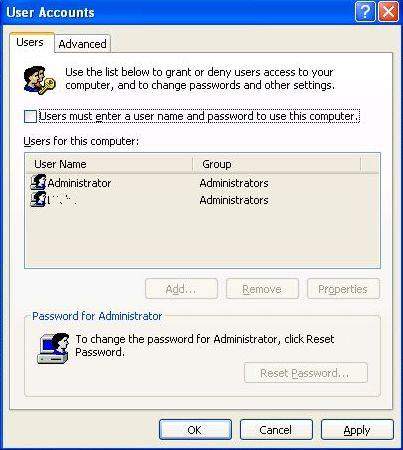
Clear the check box for Users must enter a user name and password to use this computer, and then click Apply.
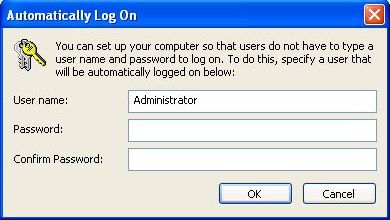
An “Automatically Log On” window will appear. In the dialog box, type the password for Administrator in the Password box, and then retype the password in the Confirm Password box.
Normally, the User Name field will auto fill with “Administrator”, the default super user account in Windows XP that does not come with any password (and normally use as a backdoor hack access to Windows XP system). If you wish, you can change the user name to another user account.
Click OK to close the “Automatically Log On” window, and then click OK to close the “User Accounts” window.
Note: The guide also works in Windows Vista, Windows 7, Windows 8, Windows 8.1 and Windows 10 which also open Advanced User Accounts Control Panel.
LK is a technology writer for Tech Journey with background of system and network administrator. He has be documenting his experiences in digital and technology world for over 15 years.Connect with LK through Tech Journey on Facebook, Twitter or Google+.