Easy Way to Import, Upload, Backup or Store Email Messages into Gmail for Archive
Have too many emails scatter around desktop email clients on local disk? The mails which downloaded and retrieved from POP3 mail server using program such as Microsoft Office Outlook, Outlook Express, Netscape, Windows Mail, Mozilla Thunderbird, Pegasus, Eudora or others, are stored and kept on local hard drive. E-mail messages stored in the e-mail client mailboxes can be read and browse offline and organize into folders using client’s database file.
However, over the time, the data files , such as Outlook Personal Folders data file .PST or mBox used in Eudora and Thunderbird will grow very big, making the client program less responsive and unstable. Beside, the locally stored emails and old mails archive also prone to high risk of accidental lost such as when hard disk crashes, or when reformatting/reinstalling operating system. Thus if your email messages is important to you for future reference or sweet memories, backup the mails somewhere else especially on a medium that is easily accessible is a must.
Archive and backup the mails by uploading and importing the mails into Gmail server is a good choice. Gmail now has over 4GB of storage space, enough for thousands if not millions of e-mails. What most important is that mails kept on Gmail is in safe hand. You can easily access the mails via web interface and free IMAP or POP3 support. And Google, provider of Gmail is reliable and unlikely to go bust or bankrupt in the foreseeable future, causing you have to move entire email archive stored in Gmail elsewhere again. Beside, users can also enjoy other features and benefits of Gmail, such as labeling of email messages instead of storing into folders and powerful quick mail search.
However, Gmail does not provide a way or feature to upload email into it. Previously, those people who wants to import existing mail messages into Gmail has to depend on Google GMail Loader (deprecated) provided by marklyon.org to upload old emails currently exists in local mail client. However, the mail loading to Gmail process is unreliable, and often terminated halfway. Beside, only certain email clients with mBox, MailDir, MMDF, MH, and Babyl format are supported. Those using Microsoft Outlook with .PST format or Outlook Express will have to convert or export the emails to mBox data file format. There are also other issues such as non working SMTP server, modified sender name, and timestamp of emails when viewed in Inbox or All Mail is not the original date and time the mails were received, but the time when the uploaded messages were received by Google server.
Now there is a very simply trick to import and upload existing old email messages into Gmail without hassle and problems mentioned above. The trick is to make use of free IMAP access provided by Gmail. Any email client that supports configuration of multiple email accounts can upload emails to Gmail.
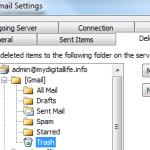
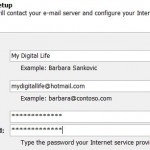
To import and upload existing emails to Gmail, firstly IMAP support must be enabled in Gmail. You can enable IMAP for Gmail by selecting Enable IMAP in Forwarding and POP/IMAP tab of Gmail Settings page. Then, open up the mail client you currently use to download and read emails. Inside the mail client, configure additional account for Gmail using IMAP protocol. Gmail Help provides guide on how to configure IMAP based Gmail access on some popular email clients.
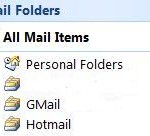
Once IMAP accessed Gmail is configured, an additional IMAP folder for these Gmail IMAP account will be displayed on folders list or mail items list. To import and upload your existing mails to Gmail, simply drag and drop, or copy and paste (or cut and paste if you no longer want the mails to have a copy in your local folders) to Gmail’s Inbox folder in the new IMAP account in the mail client. Your email client may be hanged or not resposive while transferring and uploading the emails to Gmail server, and the importing process may take a while to complete.
Once uploaded, the Gmail IMAP folder in email client will immediately synchronize and reflect the changes, and you can also verify the emails have been safely uploaded and imported into Gmail for backup or archive storage by visiting Gmail web user interface.
You can also move the email messages to a sub-folder under Gmail IMAP folder to automatically skip Gmail Inbox and archive it, but also applying a label to the email messages uploaded. You can also apply multiple labels to mail messages by simply copying the mails to many sub-folders.
Note that above trick only works on existing email messages currently reside in local mailboxes of email client, which has been downloaded from POP3 mail server, or can be accessed via IMAP or HTTP in case of Windows Live Hotmail (aka MSN Hotmail).
If you are using webmail interface to access your email, and want to transfer the mails to Gmail, you can skip all these steps by making use of Gmail’s free Mail Fetcher function, provided your webmail service provider has POP3 access. Mail Fetcher allows users to directly import mail from a POP3 supported email service into GMail.
LK is a technology writer for Tech Journey with background of system and network administrator. He has be documenting his experiences in digital and technology world for over 15 years.Connect with LK through Tech Journey on Facebook, Twitter or Google+.