
Each Canon digital camera (including Canon EOS dSLR) or digital camcorder comes with a software CD which contains various application programs specifically designed to support and enhance the electronic devices and its works. However, the CD disc media is kind of outdated, and the CD can easily lost, scratched, misplaced or simply cannot be found when in need. The practice of having to install old version first before able to install newer version is also not efficient. Sometimes, on some notebook or netbook, there isn’t even any CD or DVD optical drive available.
Canon does provide direct download for the setup installer or updater of the various Canon camera, camcorder, printer software programs at its support site (support and downloads for all localities is accessible from canon.com). The problem is that these setup installers are meant for upgrade only, although it contains everything in the full version of the software. In other word, the existing original application must already be installed on the computer, or the Canon CD must be inserted into CD-ROM or DVD-ROM to verify the ownership of Canon products.
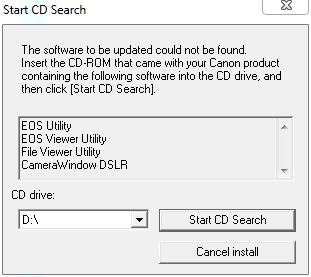
Typically, the Canon installer will prompt the following dialog message if the program to upgrade or update is not yet been installed.
The software to be updated could not be found.
Insert the CD-ROM that came with your Canon product containing the following software into the CD drive, and then click [Start CD Search].
There are workarounds to bypass the installed software or Canon CD required requirement of the setup installer downloaded directly from Canon website. The trick below will be helpful to Canon users who have lost the Canon software CD, or want to directly install latest version of Canon software by downloading online without using the CD.
The hack to fool, or trick the Canon setup installer to think that the original Canon software program has been installed on the system is to add the required registry keys in which the setup checks against. Typically, the setup installer only checks whether the main registry key for the particular software exists before allowing installation to be continue.
The registry key can be added with Registry Editor (RegEdit.exe) manually. Different Canon software applications require different registry keys to be added. The list of Canon software and their respective required registry keys are as follow. As the 32-bit Canon software is running as 32-bit mode, so the registry location is different for 64-bit (x64) operating system.
Canon EOS Utility:
32-bit (x86): HKEY_LOCAL_MACHINE\SOFTWARE\Canon\EOS Utility
64-bit (x64): HKEY_LOCAL_MACHINE\SOFTWARE\Wow6432Node\Canon\EOS Utility
Canon Digital Photo Professional (DPP):
32-bit (x86): HKEY_LOCAL_MACHINE\SOFTWARE\Canon\DPP
64-bit (x64): HKEY_LOCAL_MACHINE\SOFTWARE\Wow6432Node\Canon\DPP
Canon ZoomBrowser EX:
32-bit (x86): HKEY_LOCAL_MACHINE\SOFTWARE\Canon\ZoomBrowser EX
64-bit (x64): HKEY_LOCAL_MACHINE\SOFTWARE\Wow6432Node\Canon\ZoomBrowser EX
Note that Settings and Install sub-keys for ZoomBrowser EX (as shown below) may be required too for ZoomBrowser EX version 6.3.1 or higher.
32-bit (x86):
HKLM\SOFTWARE\Canon\ZoomBrowser EX\Settings
HKLM\SOFTWARE\Canon\ZoomBrowser EX\Install
64-bit (x64):
HKLM\SOFTWARE\Wow6432Node\Canon\ZoomBrowser EX\Settings
HKLM\SOFTWARE\Wow6432Node\Canon\ZoomBrowser EX\Install
Canon PhotoStitch:
32-bit (x86): HKEY_LOCAL_MACHINE\SOFTWARE\Canon\PhotoStitch
64-bit (x64): HKEY_LOCAL_MACHINE\SOFTWARE\Wow6432Node\Canon\PhotoStitch
Canon EOS Capture:
32-bit (x86): HKEY_LOCAL_MACHINE\SOFTWARE\Canon\EOS Capture
64-bit (x64): HKEY_LOCAL_MACHINE\SOFTWARE\Wow6432Node\Canon\EOS Capture
Canon EOS Viewer Utility:
32-bit (x86): HKEY_LOCAL_MACHINE\SOFTWARE\Canon\EOSViewerUtility
64-bit (x64): HKEY_LOCAL_MACHINE\SOFTWARE\Wow6432Node\Canon\EOSViewerUtility
Canon Original Data Security Tools:
32-bit (x86): HKEY_LOCAL_MACHINE\SOFTWARE\Canon\ODSK
64-bit (x64): HKEY_LOCAL_MACHINE\SOFTWARE\Wow6432Node\Canon\ODSK
To make the hack easier, it’s possible to just save the following text into a file with a name ends with .reg extension (e.g. canon-update.reg), and then double click to run the .reg file to automatically input and merge all registry keys and values into the system.
For 32-bit (x86) Windows XP, Windows Vista, Windows 7:
Windows Registry Editor Version 5.00

[HKEY_LOCAL_MACHINE\SOFTWARE\Canon\EOS Utility]
[HKEY_LOCAL_MACHINE\SOFTWARE\Canon\DPP]
[HKEY_LOCAL_MACHINE\SOFTWARE\Canon\ZoomBrowser EX]
[HKEY_LOCAL_MACHINE\SOFTWARE\Canon\ZoomBrowser EX\Settings]
[HKEY_LOCAL_MACHINE\SOFTWARE\Canon\ZoomBrowser EX\Install]
[HKEY_LOCAL_MACHINE\SOFTWARE\Canon\PhotoStitch]
[HKEY_LOCAL_MACHINE\SOFTWARE\Canon\EOS Capture]
[HKEY_LOCAL_MACHINE\SOFTWARE\Canon\EOSViewerUtility]
[HKEY_LOCAL_MACHINE\SOFTWARE\Canon\ODSK]
For 64-bit (x64) Windows 7 and Windows Vista:
Windows Registry Editor Version 5.00

[HKEY_LOCAL_MACHINE\SOFTWARE\Wow6432Node\Canon\EOS Utility]
[HKEY_LOCAL_MACHINE\SOFTWARE\Wow6432Node\Canon\DPP]
[HKEY_LOCAL_MACHINE\SOFTWARE\Wow6432Node\Canon\ZoomBrowser EX]
[HKEY_LOCAL_MACHINE\SOFTWARE\Wow6432Node\Canon\ZoomBrowser EX\Settings]
[HKEY_LOCAL_MACHINE\SOFTWARE\Wow6432Node\Canon\ZoomBrowser EX\Install]
[HKEY_LOCAL_MACHINE\SOFTWARE\Wow6432Node\Canon\PhotoStitch]
[HKEY_LOCAL_MACHINE\SOFTWARE\Wow6432Node\Canon\EOS Capture]
[HKEY_LOCAL_MACHINE\SOFTWARE\Wow6432Node\Canon\EOSViewerUtility]
[HKEY_LOCAL_MACHINE\SOFTWARE\Wow6432Node\Canon\ODSK]
Once the registry keys above exists in the system, users will be able to install the programs directly with downloaded Canon updaters without having the original software installed.
Tip: Canon Raw Codec and WFT Utility can be installed right away as the setup does not verify existing original software.
Canon Digital Photo Professional Alternative
The following setup installer for Canon DPP version 1.0 is official download available from Canon Japan website. It can be used to install full version of Canon Digital Photo Professional without prerequisite, which can then be upgraded if necessary.
Windows: dpp100-e.exe
Mac OS X: dpp100-e.hqx
Workaround to Install Canon DPP with Updater in Mac OS X
It’s possible to hack the Canon updater for Canon Digital Photo Professional so that the updater acts like an installer, i.e. without the need of original software been installed prior to “update”. Here’s the step-by-step guide to modify the Mac OS X Canon updater:
- Copy the Canon updater to Desktop.
- Right click or Control-click on the app.
- Select “Show Package Contents”.
- Navigate to “/Contents/Resources/” folder.
Note: For some updater, if found, continue to right click on “SDI.bundle” and select “Show Package Contents”, then navigate to next “/Contents/Resources/”.
- Delete the “update.plist” file.
- Double click on the modified application to start the setup. The program should install without any restriction.
 Tip and Trick
- How To Download HBO Shows On iPhone, iPad Through Apple TV App
- Windows 10 Insider Preview Build 19025 (20H1) for PC Official Available for Insiders in Fast Ring – Here’s What’s News, Fixes, and Enhancement Changelog
- Kaspersky Total Security 2020 Free Download With License Serial Key
- Steganos Privacy Suite 19 Free Download With Genuine License Key
- Zemana AntiMalware Premium Free Download For Limited Time