Jun 15, 2009
My Digital Life Editorial Team

Disable and Turn Off Taskbar Thumbnail Preview in Windows 7 (Switch to List View)

Windows 7 has a completely overhauled Taskbar to include many new features until many calls it as Superbar. Among changes in Windows 7 Taskbar is ability to hide title label for the buttons on Taskbar leaving only icons (revert to button with text), Jump Lists, ability to pin to Taskbar, and thumbnail preview for open running programs’ windows.

The thumbnails preview feature for Windows 7 Taskbar displays a small thumbnail preview of opened windows when user hovers mouse over the program’s button or icon on the Taskbar. For users who don’t look at the window’s thumbnail preview, it’s possible to disable (and enable later to revert) Taskbar thumbnail preview in Windows 7.
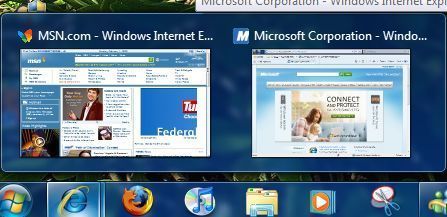
Windows 7 Taskbar Thumbnails Preview

How to Enable or Disable Taskbar Thumbnail Preview in Windows 7

  1. Click on Start button and type GPEdit.msc in Instant Search text box, then hit Enter.
  2. Navigate to User Configuration -> Administrative Templates -> Start Menu and Taskbar in left pane of Local Group Policy Editor.
  3. Locate and double click on Turn off taskbar thumbnails in right pane of Local Group Policy editor.
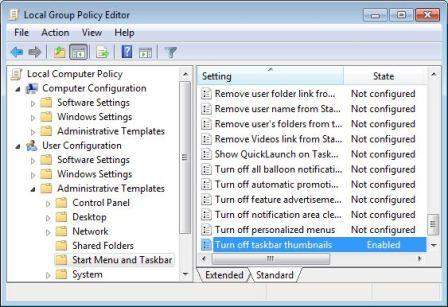
    Disable Taskbar Thumbnail Preview in Windows Vista and Windows 7

  4. Select Enabled radion button.
  5. Click OK to make the change effective.
  6. Logoff and logon again or restart computer if needed.
  7. To re-enable Taskbar preview feature in Windows 7, just set the value to Disabled or Not Configured.

Alternatively, it’s also possible to manually set or configure the registry key to disable Taskbar thumbnails function.

  1. Click on Start button and type RegEdit in Instant Search text box, then hit Enter.
  2. In the Registry Editor, navigate to the following registry key:

    HKEY_CURRENT_USER\Software\Microsoft\Windows\CurrentVersion\Policies\Explorer

    Note: If Explorer registry sub-key does not exist, then right click on Policies and click New -> Key and name it as “Explorer”.

  3. In the right pane, right click on a blank spacce, and then select New -> DWORD (32-bit) Value.
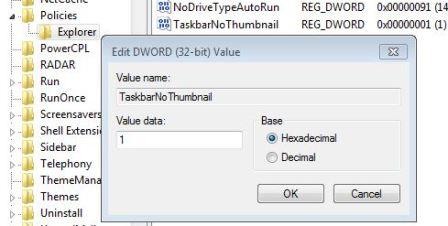
  4. Type TaskbarNoThumbnail as the name for the new registry value data.
  5. Double click on TaskbarNoThumbnail to modify its value data.
  6. Type 1 and click on OK.

    TaskbarNoThumbnail

  7. Logoff and logon again or restart computer if needed.
  8. To re-enable Taskbar thumbnails again, just right click on TaskbarNoThumbnail and click Delete to remove the whole registry key, or set TaskbarNoThumbnail value data to 0.

Above manual registry editing step can be done easily by simply downloading the following registry registration files, and then double click it to merge into system registry.

To Disable Taskbar Thumbnails Preview: Disable-Taskbar-Thumbnails.reg
To Enable Taskbar Thumbnails Preview: Enable-Taskbar-Thumbnails.reg

Note: Unfortunately, the trick to disable and turn off Taskbar opened window thumbnail preview may or may not work and the setting is reserved for Windows Vista only, depends on build of Windows 7. Here’s few other alternative workarounds to disable thumbnail preview on Windows 7 Taskbar.

Workaround 1 – Disable Windows Aero Theme

Taskbar Thumbnail Preview only works when you have enable Windows Aero desktop effects in Windwos 7. Thus, when Windows Aero is disabled, the Taskbar thumbails will not be displayed, and will be replaced with a list view of opened windows with only text instead.
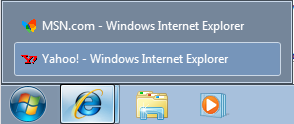
List View for Opened Windows in Windows 7 Taskbar

To disable Windows Aero, just select a non-Windows Aero theme in Personalization of Control Panel. Of course, you will lose much fun of using Windows 7 by using this workaround.

Workaround 2 – Delay Mouse Over Respond on Taskbar

Another workaround is to set the system to respond very slow when user hovers or mouse overs the Taskbar, making not only the thumbnails not appearing, but also the usual list view of opened windows. Instead, only a tooltip showing the top window’s title will be shown during this time.
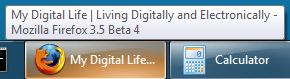
Tooltip over Taskbar Button/Icon

Follow the guide to set the ExtendedUIHoverTime registry key for a longer delay time for mouse hover over effect.

Related posts:

  1. How to Turn Off Image Preview Thumbnail and Disable Windows Picture and Fax Viewer in Windows XP
  2. How to Turn Off and Disable Thumbnail Preview in Vista
  3. How to Enable or Disable Media and Video Thumbnail Preview in Windows XP
  4. How to Enable or Disable (Turn On or Off) Desktop Preview in Windows 7
  5. Disable and Prevent Thumbnail Cache (Thumbs.db) Creation

21 Comments

  • Tried every solution found on the web – nothing.
    MaxThumbSizePx = 1 did the trick.

    I’m using Windows 7 Home Premium (OEM).

    Thank a lot!

  • HI,

    I like the thumbnails and mine have turned off on their own since yesterday.

    For me your instructions fail at the first stage as GPEdit.msc in the search bar brings up zero results.

  • Finally. Thank you thank you. What an annoying feature.

  • Just got a Windows 7 laptop for the first time, and the first thing I've done is get rid of those annoying thumbnails. I don't have GPEdit.msc, but the regedit method worked great (and no restart needed). Thanks!

  • The following will work in Windows 7:

    (You can copy to text file, rename to DisableThumbnails.reg and then run it if you want)

    To get the setting to apply, you will have to either logoff, then login.

    Advanced: You can also just exit the explorer instance for the taskbar usig Ctrl-Shift-RightClick in the start menu above the shutdown options and exit explorer there, then re-run explorer from the task manager (Ctrl-Shift-Esc to easily get there) File->New Task (Run) dialog – type explorer and click OK

    Registry entry below …

    —————

    Windows Registry Editor Version 5.00

    [HKEY_CURRENT_USERSoftwareMicrosoftWindowsCurrentVersionExplorerTaskband]

    "NumThumbnails"=dword:00000000

  • Regedit

    HKEY_CURRENT_USER Software Microsoft Windows CurrentVersion Explorer Taskband

    Create a DWORD decimal value of 1.

    MaxThumbSizePx (Disables preview)

    ExtendedUIHoverTime (Preivew delay quicker/slower)

  • MaxThumbSizePx = 1

  • This WORKS for me:
    Taskbar-Thumbnail-Tweaker – 88kb
    on win7 ultimate

  • Thanks, that worked great. Straightforward explanation.

  • Nice tip but changing the gpedit.msc settings doesn't seem to change anything. Why?

  • SOLUTION -> http://rammichael.com/7-taskbar-tweaker

    i found this on another forum, figured it would be more use here

  • I also think the Taskbar Thumbnail Preview function is useless, just a over design function.

    My purpose's to swich the program, no to review it.

    the function even increase in trouble to normal use:

    when I use vmwork station, it will show every virtual system window even for not current running yet, oh my , just so bad to me.

  • GPEdit.msc doesn't work in all versions of 7. A fact overlooked by the language skill lacking skxawngs who mastermine this site.

    I love coming here. This site is a continuous source of amusement. I could hope to find better slapstick comedy.

  • This site's miserable language and/or translation skills continues to amuse me. Or is it maybe the authors are sinply children who aspire to being actual persons or note.

  • this didn't work for me, but this guide did.

    1. Click on the Start Button and type in Regedit and hit Enter.
    2. Navigate through HKEY_CURRENT_USERSoftwareMicrosoftWindowsCurrentVersionExplorerAdvanced.
    3. Right click on Advanced and select New DWORD and name the new value "ExtendedUIHoverTime".
    4. Right click on ExtendedUIHoverTime and select Modify.
    5. Switch to Decimal base and enter in your new number. The default is 400 milliseconds. I like to set mine to 100 for a 100 millisecond delay.
    6. Once changed click OK and restart the explorer process or restart your computer.

    use that one but set the hover delay to like 999999.

    works like a charm

  • it doesn't work at all.

    win7 is faster, but much inconvenient that vista

  • This doesn't work for Windows 7 Ultimate…..(x64 OEM Edition)

    Is there anyway of ACTUALLY disabling thumbnail previews in Windows 7?

    • This ability was apparently disabled in the final versions of Window 7 (at least 64-bit, I can't speak for 32-bit versions). More here: http://social.technet.microsoft.com/Forums/en/w7i

      From above link: "TaskbarNoThumbnail: This policy applies to Windows Vista only (and I think pre-release versions of Windows 7 too). Microsoft removed the policy in the final version of Windows 7. In Windows Vista there was a checkbox in the taskbar properties window to enable/disable taskbar thumbnails. This portion of the UI was also removed in Windows 7."

      7 Taskbar Tweaker linked above did the trick for me, and gives some other nice options. Not the perfect solution as it's a 3rd-Party add-on, but no more thumbnail pop-ups getting in my way!

  • This is incorrect. The "Local Group Policy Editor-Turn off taskbar thumbnails" window states it is "Windows Vista Only"

  • [...] Disable and Turn Off Taskbar Thumbnail Preview in Windows 7 (Switch to List View) [...]

Leave a comment

Notify me of followup comments via e-mail. You can also subscribe without commenting.

Subscribe

Free email subscriptions
Get latest updates in email for free:

Translate This Page