Delay Sending of Email Message in Outlook (Supports Exchange, Gmail, Hotmail, Yahoo, AOL, SMTP Mail)
Occasionally you may need to delay or postpone delivery or sending or an email message. Normally, when you click on “Send” button, the email will be sent immediately, no matter you’re using desktop email clients such as Outlook, Outlook Express or Thunderbird, or web-based email services (of course, not when you disconnect from Internet when using offline desktop mail client where email cannot be sent out).
The ability to delay delivery of mail message will be useful in such a case where you want a mail to only be delivered to recipients on future date such as birthday wishes, appointment reminders, anniversary celebration, holiday or occasion greetings, or simply to avoid sending mail to person on vacation when you know that he or she won’t back before certain date, and etc.
Microsoft Outlook provides such a feature called “Do Not Deliver Before” to postpone sending of email to future date or time, and enable all POP3, IMAP, HTTP or Microsoft Exchange Server email services.
The tutorial provides step-by-step guide on how to delay and postpone the sending and delivery of an email message to recipients until after a specified date and time in Microsoft Office Outlook later than Outlook 2010, such as Outlook 2013 and Outlook 2016:
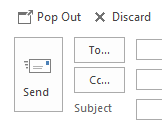
Compose a new email (or reply or forward an email) in pop-up Message window. If you’re typing the message in-line in a pane, click or tap on Pop Out to open message editing in a new window.
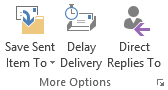
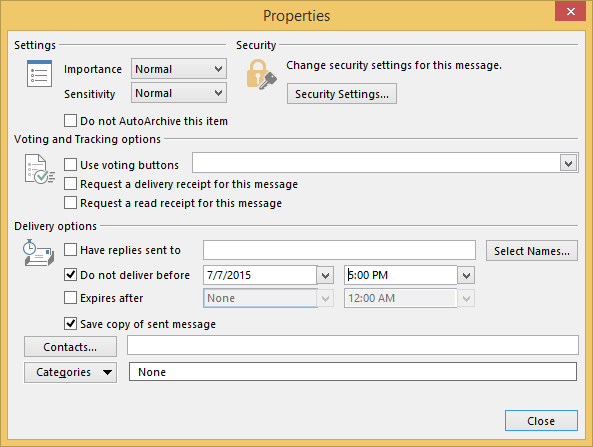
Under “Delivery options” heading, select and tick the Do not deliver before check box (should be automatically checked). Then choose the desired date and time which the mail will only be delivered by using the calendar and time drop down list.
Hit Close. The “Delay Delivery” button should now be selected and highlighted, indicating it’s active.
Compose your email message and hit “Send” as per normal, but the email will be kept in Outlook, and will be sent only upon reaching the preset date and time.
In Microsoft Outlook earlier than Microsoft Office Outlook 2010 such as Outlook 2007, Outlook 2003, Outlook XP or earlier, follow steps below to enable delay sending of emails at a specified time and date later than current time, or postponing the delivery date and time:
In the Message window (where you type your email content), click the Options button. Alternatively, click on View -> Options.
In the Message Options dialog window, select and tick the Do Not Deliver Before check box, under the “Delivery Options”. Then choose the desired send date and time to deliver the email by using the calendar and time drop down list.
Click Close and then click OK.
Compose your email message and hit “Send” as per normal, but the email will be kept in Outlook, and will be sent only upon reaching the preset date and time.
The email message that is delayed sending in future date will be held in the Outbox folder after you clicking on Send button. Once the specified assigned date and time is reached, the email will be sent and delivered, and email been moved to Sent Items folder automatically, provided you’re connected to Internet.
The delay email sending trick works in most version of Microsoft Outlook, i.e Microsoft Outlook 2007, 2003, XP and 2000. Beside, as the Do Not Deliver Before delay sending function is a feature of Microsoft Outlook (but not Outlook Express), works independently of email account providers, and Outlook can be configured to access many popular free email accounts, thus the postponement of email sending feature can be extend to these free mail accounts, as long as these email providers support one of the email transfer protocols that Outlook supports, such as POP3, SMTP, IMAP, Microsoft Exchange Server and HTTP (for MSN Hotmail or Windows Live Mail), Exchange ActiveSync. In quick glance, almost all of the most popular free webmail such as Google Gmail, Yahoo! Mail, Hotmail (Windows Live Mail), Outlook.com, Google Apps, Office 365, Fastmail, AOL, Inbox.com, AIM, HotPOP, Zoho, email accounts from ISP, and many more, can delay sending message by configuring Outlook to access the email account instead of using webmail interface.
Note that you need to let Outlook runs, at least in the background, and has automatic send/receive scheduled, to let Outlook sends out and delivers the mail automatically to recipients upon reaching the intended delivery time. As scheduled send/receive is only running at interval, so the delayed mail may not be sent on the preset time itself, but after it.
LK is a technology writer for Tech Journey with background of system and network administrator. He has be documenting his experiences in digital and technology world for over 15 years.Connect with LK through Tech Journey on Facebook, Twitter or Google+.